Do You Still Need a Raspberry Pi for Remote 3D Printing?

For years, the answer was simple: if you wanted to start, watch, or stop a 3D print without standing next to the printer, you bought a Raspberry Pi. You flashed OctoPi onto an SD card, plugged the Pi into the printer's USB port, attached a camera, and you had remote 3D printing.
That setup earned its reputation. OctoPrint is excellent software, and it made remote printing possible on printers that had no network connection at all. But a lot has changed since then. Many printers now come online on their own, and the Pi has gone from required to optional.
So, do you still need one? It depends on your printer. Let's walk through it.
Why everyone used a Raspberry Pi
Most hobby printers from the 2010s, like the original Ender 3 or CR-10, had no Wi-Fi and no network port. The only ways in were an SD card or a USB cable. To control one remotely, you needed a small computer sitting next to it to:
- Receive files over the network
- Send G-code to the printer over USB, line by line
- Stream a webcam feed
- Serve a web page you could reach from your phone or laptop
A Raspberry Pi was cheap, small, and low-power, so it became the default. OctoPi (OctoPrint packaged for the Pi) made setup approachable.
What it costs to keep a Pi running
A Pi works, but it's one more thing to own:
- Hardware: the board, power supply, SD card, case, and camera.
- Setup: flashing an image, configuring Wi-Fi, finding the Pi on your network, and installing plugins.
- Upkeep: OS updates, OctoPrint updates, plugin updates, and the occasional corrupted SD card.
- Remote access: OctoPrint is built for your local network. Reaching it from outside your home usually means a plugin, a third-party service, or port forwarding.
For one hobby printer, that's manageable. For a classroom or a print farm, it's one more computer per printer to maintain.
Many printers no longer need one
Today's printers increasingly connect to the network themselves, and some connect to the cloud straight from their own firmware. That's the setup we push for at Polar Cloud: native connections, built into the printer from the factory.
Before you buy a Pi, check our compatibility list. Pick your printer's brand to see every supported model and exactly how it connects. You may find your printer doesn't need anything extra at all.
Printers with Polar Cloud built in
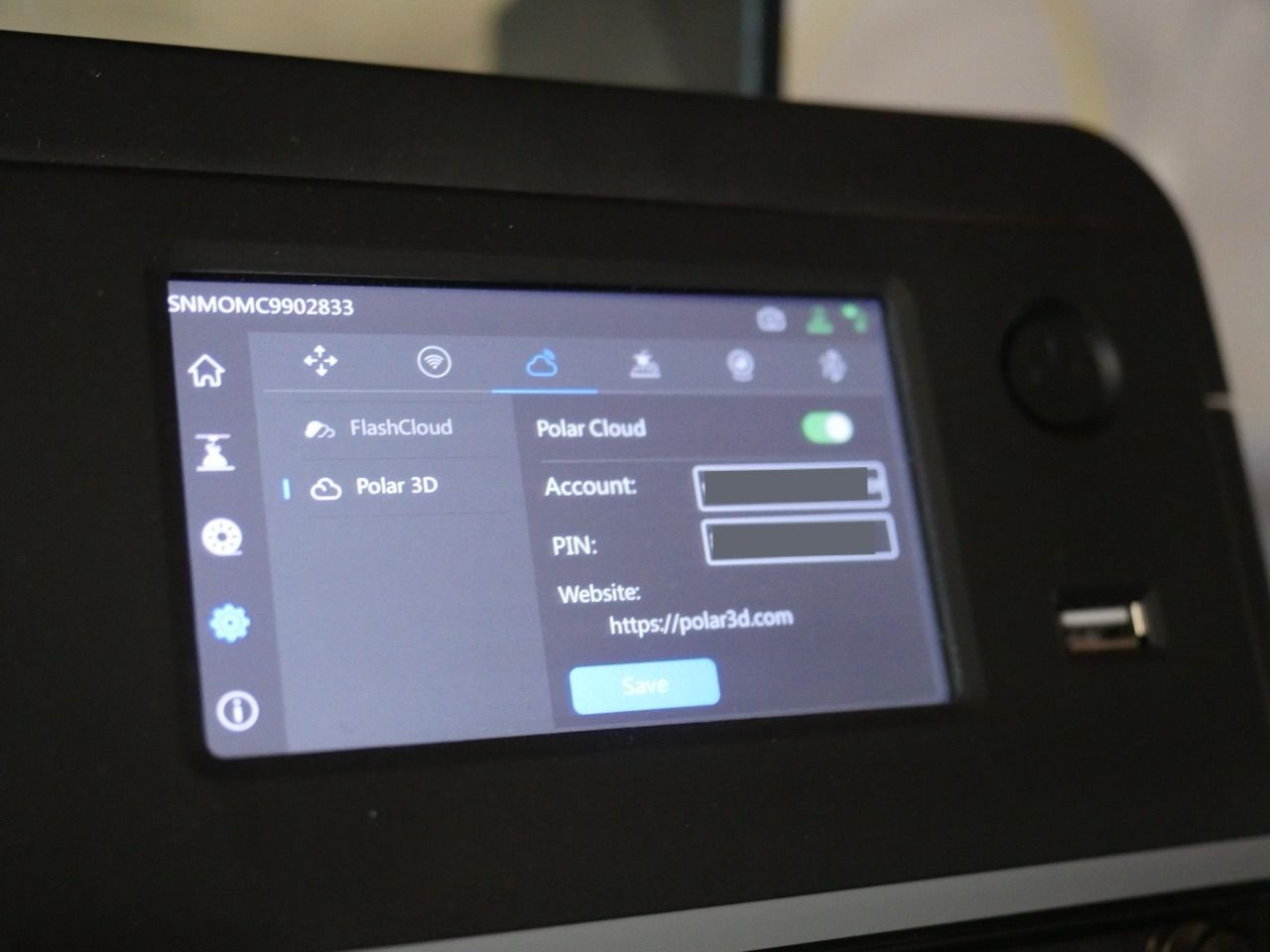
Many printers from Flashforge and Dremel ship with Polar Cloud in their firmware, from the Adventurer 3 to the Adventurer 5M Pro. So do many Flashforge-built printers sold under other brands, such as Robo. You connect from the printer's own touchscreen:
- Join the printer to Wi-Fi.
- Enter your Polar Cloud account details on the printer.
- That's it. The printer holds its own connection to the cloud.
No Raspberry Pi, no plugin, and no computer to keep running. You can queue, monitor, and manage the printer from any browser or the Polar Cloud mobile app.
Printers that already run Klipper and Moonraker
Here's a change a lot of people miss: several printer brands now ship machines that run Klipper with Moonraker right on the printer. That's the same software stack people used to install on a Raspberry Pi, so the printer already has the computer a Pi would have provided.
That includes the Creality K1, K1C, and K1 Max, the Anycubic Kobra S1 and Kobra S1 Max, and the Snapmaker U1. Install our open-source polar-cloud-klipper plugin on the printer, and it connects to Polar Cloud on its own. No separate Pi.
The list keeps growing, so check the compatibility list for your model.
Have a computer around? Use it instead of a Pi
A Raspberry Pi in a remote printing setup is really just a small computer running connection software. If you already have a computer on the same network as your printers, you can run that software there instead.
That's what the free Polar3D Bridge does for Bambu Lab, Prusa, and Elegoo printers. Install it on a Mac, Windows, or Linux computer, and it talks to your printers over your local network and links them to Polar Cloud. Nothing to flash and nothing to solder.
It can be any computer you already own, like a lab workstation or a front-desk PC, and one computer can connect a whole room of printers instead of one Pi per printer.
If your Bambu Lab printers sit behind a Bambu Lab Fleet Hub, the Polar3D for Bambu Lab Agent connects through the official Bambu SDK from a Windows PC.
When a Raspberry Pi still makes sense
A Pi is still a good choice when:
- Your printer has no network connection at all. An older USB-only printer can't get online without a computer next to it, and a Pi is a cheap, reliable way to add one.
- You already run OctoPrint and like it. Keep it. The Polar Cloud plugin for OctoPrint connects your OctoPrint printer to Polar Cloud, so it joins the same dashboard and queues as your other printers.
- You want to tinker. OctoPrint's plugin ecosystem is huge. If customizing your setup is part of the fun, a Pi is a great project.
Which Pi should you get for OctoPrint?
The Raspberry Pi Zero 2 W is a great option. It's small, inexpensive, and on OctoPrint's recommended hardware list, along with the Pi 3B, 3B+, and 4B.
One thing to watch: don't confuse it with the older Raspberry Pi Zero W (no "2"). OctoPrint specifically recommends against the original Zero and Zero W, because their Wi-Fi can't keep up when you stream a webcam, and that can hurt print quality.
Quick guide: do you need a Pi?
| Your printer | Do you need a Pi? | How to connect it to Polar Cloud |
|---|---|---|
| Flashforge, Dremel, or Flashforge-built (e.g. Robo) | No | Built in. Connect from the printer's screen. |
| Klipper printers: Creality K1 family, Anycubic Kobra S1, Snapmaker U1 | No | polar-cloud-klipper plugin on the printer |
| Bambu Lab, Prusa, Elegoo Centauri Carbon | No | Polar3D Bridge on a computer you already own |
| Bambu Lab with Fleet Hub | No | Polar3D for Bambu Lab Agent on Windows |
| Older USB-only printers (Ender 3, CR-10, etc.) | Usually yes | OctoPrint on a Pi (a Zero 2 W works well), plus the Polar Cloud plugin |
Not sure which group yours is in? Check the compatibility list.
Frequently asked questions
Can I print remotely without OctoPrint?
Yes. Printers with Polar Cloud built in, like many Flashforge and Dremel models, connect directly from their own firmware with no OctoPrint or Raspberry Pi. Klipper printers, Bambu Lab, Prusa, and Elegoo printers also connect to Polar Cloud without one.
Is a Raspberry Pi still worth buying for 3D printing?
If your printer has no network connection, yes. A Pi running OctoPrint is still one of the cheapest ways to add remote control to an older printer. If your printer already has Wi-Fi, runs Klipper, or connects to the cloud natively, you probably don't need one.
Which Raspberry Pi is best for OctoPrint?
The Raspberry Pi Zero 2 W is a good, inexpensive choice, and it's on OctoPrint's recommended list along with the Pi 3B, 3B+, and 4B. Avoid the original Pi Zero and Zero W, which OctoPrint recommends against, especially with a webcam.
Can I use my computer instead of a Raspberry Pi?
For Bambu Lab, Prusa, and Elegoo printers, yes. The free Polar3D Bridge runs on a Mac, Windows, or Linux computer on your network and connects those printers to Polar Cloud, doing the job a Pi would otherwise do.
I already use OctoPrint. Do I have to switch?
No. Install the Polar Cloud plugin from the OctoPrint plugin repository, enter your Polar Cloud username and PIN, and turn the connection on. Your printer keeps OctoPrint and shows up in Polar Cloud.
Can I manage printers from different brands in one place?
Yes. Polar Cloud is brand-agnostic. Native printers, Bridge-connected printers, Klipper printers, and OctoPrint printers all appear in the same dashboard, with shared queues and permissions.
The bottom line
The Raspberry Pi made remote 3D printing possible, and for older printers it's still the right tool. But if you're buying a printer today, or you already own one with Wi-Fi or Klipper, you likely don't need an extra computer babysitting it. And if you do need one, the computer you already have may do the job.
Create a free Polar Cloud account and see how your printers connect.
Subscribe for updates
Get Polar Cloud news and help delivered straight to your inbox.
More from the blog