Print From Your AI Tool: Polar Cloud Now Works With Cursor and Claude

If you spend your day in Cursor or Claude, you've probably had this moment: you're designing something, you've got an STL sitting in a folder, and now you have to stop, open a browser, upload it, pick a printer, slice it, and queue it.
Now you can just ask.
Polar Cloud has an MCP server, which is the standard way AI tools like Cursor and Claude Desktop connect to outside apps. Once it's connected, your AI tool can see your printers, upload or generate models, slice them, and put them in your print queue, all from the same chat you're already working in.
What you can ask it to do
Here's what the Polar Cloud MCP can do today:
- Check your account. Your plan, how many prints you have left this month, and your AI credits.
- List your printers. If you have more than one, it'll ask which one you want.
- Upload a model. An STL, 3MF or OBJ from your computer, or from a public link.
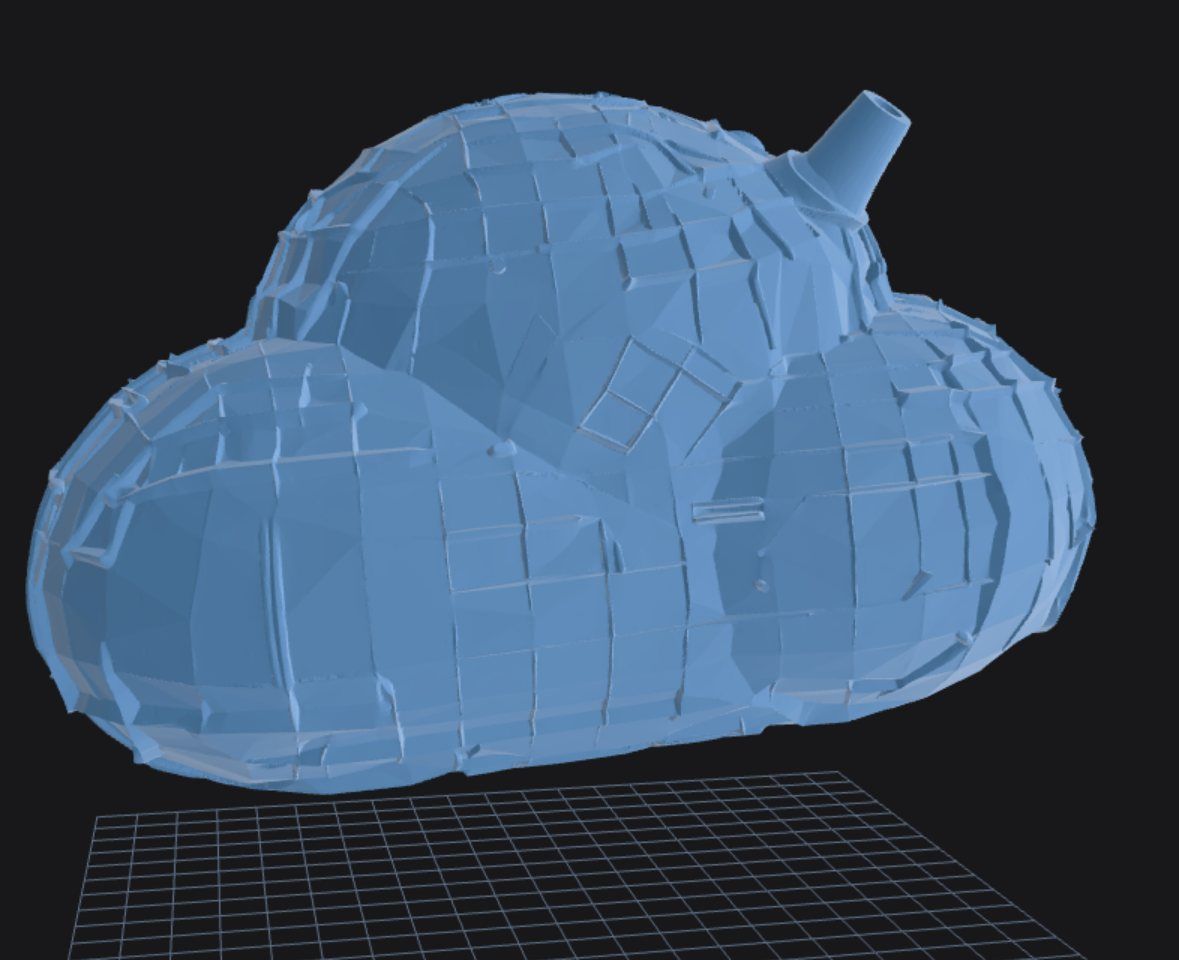
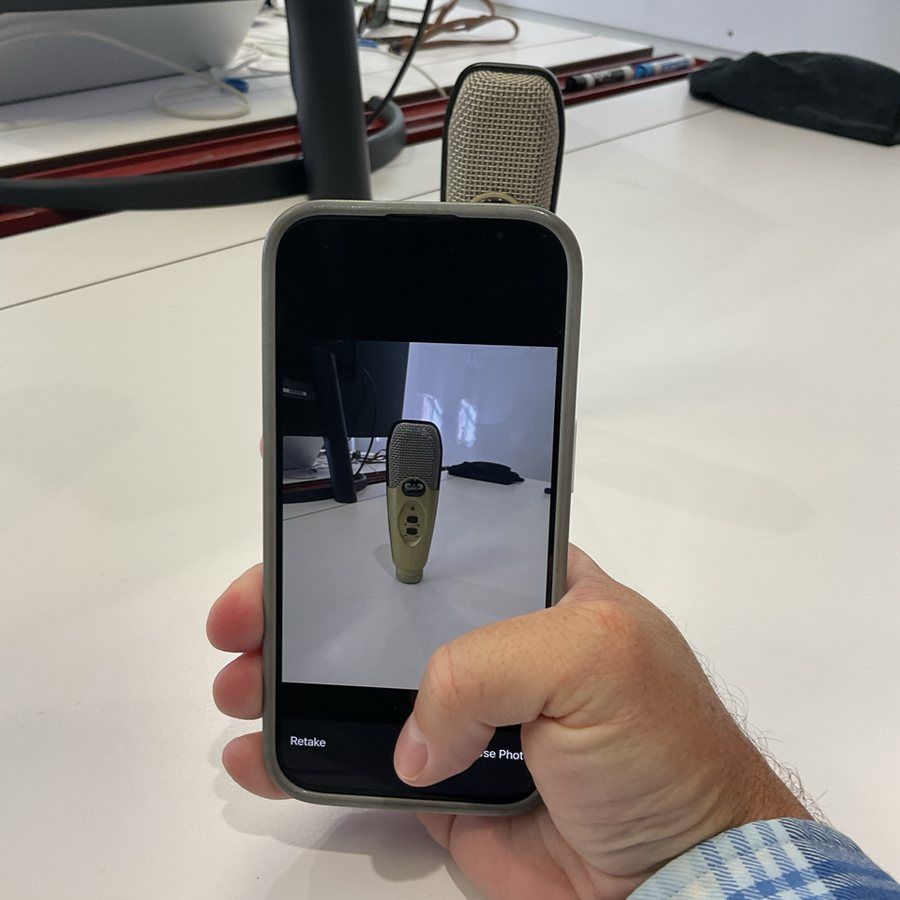
- Generate a model. Describe it, or give it a picture, and it creates a 3D model with Tripo 3D and saves it to your Polar Cloud account.
- Slice and queue it. It slices with sensible defaults (0.4 mm nozzle, 0.20 mm layers, PLA) and adds the job to your printer's queue. You can ask for supports, tree supports, a brim, a different layer height or a different infill.
- Check on a job. Ask how a print or an AI generation is doing.
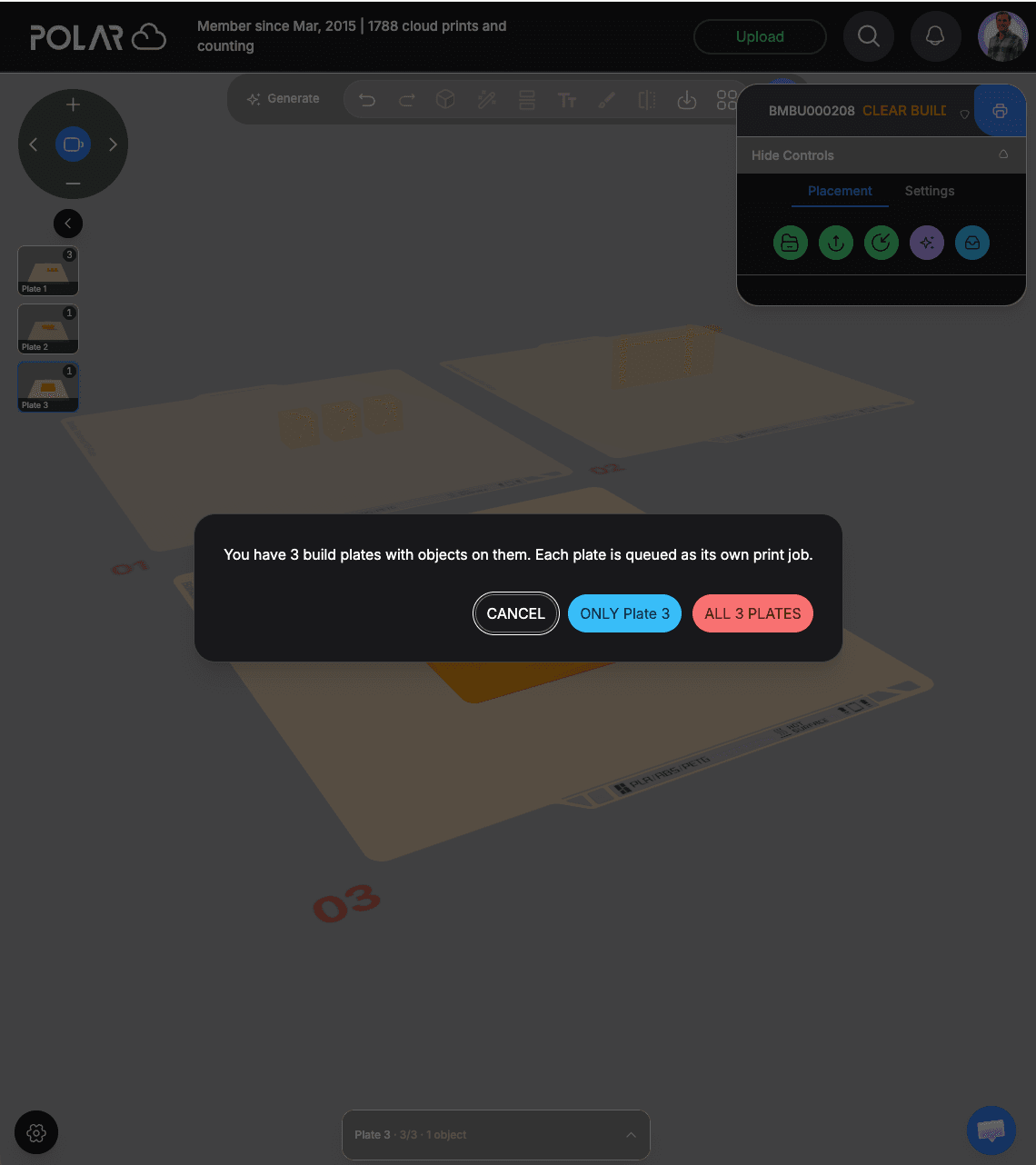
It queues the print, it doesn't start it. You still decide when the printer actually runs, so nothing surprises you on the build plate.
A few things to try
Once it's connected, you can type things like:
- "Upload ~/Downloads/cable-clip.stl and queue it on my Adventurer 5M with a brim."
- "Make me a small planter shaped like a cactus and queue it at 15% infill."
- "How many prints do I have left this month?"
- "Is my last print job done?"
Your AI tool picks the right Polar Cloud action, and you'll see each step as it happens.
For teachers: approve student prints from chat
If you're a teacher or school admin on Polar Cloud, the MCP can also work your student print requests:
- See what's waiting. List pending student requests, with thumbnails, for the classes and schools you manage.
- Plan a full plate. Ask how many of the waiting requests fit on one of your school printers, and how they'd be laid out.
- Approve and queue. Approve one request or several, combine them onto a single plate, and queue them on a school printer.
- Send one back. Reject a request with a comment, and the student is notified.
That turns "go through the queue before 3rd period" into one message.
How to connect it
It takes a couple of minutes:
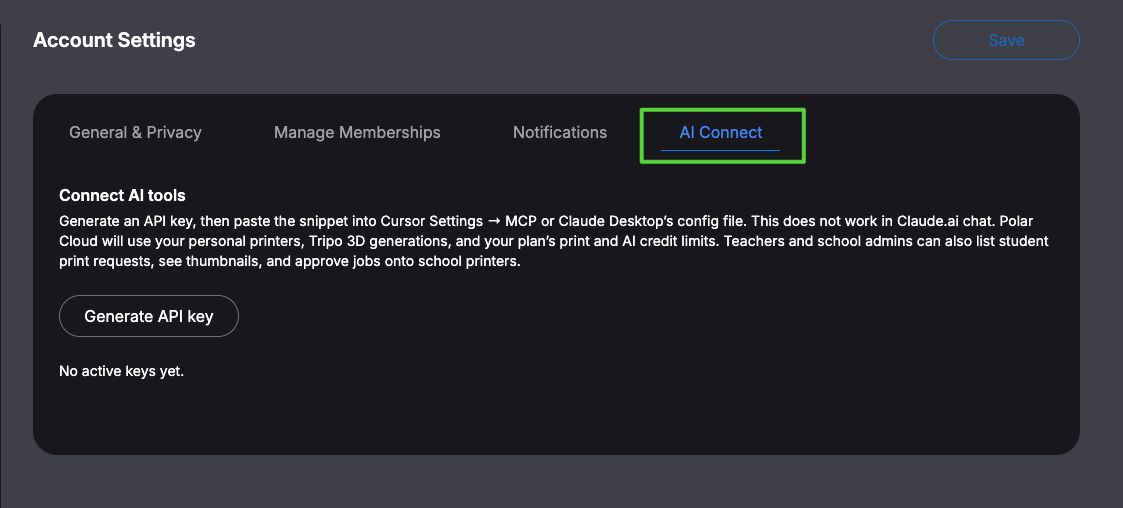
- Sign in to Polar Cloud and open Account Settings → AI Connect.
- Click Generate API key.
- Cursor: use Add to Cursor to install it in one click, or copy the Cursor snippet into Cursor Settings → MCP.
- Claude Desktop: download the Polar Cloud extension and paste your key when it asks.
That's it. Ask your AI tool to "list my Polar Cloud printers" to check that it's working.
A couple of notes:
- It works with Cursor and Claude Desktop, not Claude.ai in the browser. The MCP runs on your computer, which is also how it can upload files from your own folders.
- It uses your normal Polar Cloud account. Prints and AI generations count toward your plan's limits, the same as when you use the website.
- Your key is yours. You can see your active keys on the same AI Connect page.
Why we built it
More and more of the people who print with Polar Cloud also design, code and tinker in an AI tool all day. Switching apps just to send a part to the printer is exactly the kind of friction software should remove.
You already have the model. You already know which printer. Now you can just say so.
Haven't connected a printer yet? Create a free Polar Cloud account and follow the setup guide for your printer.
Subscribe for updates
Get Polar Cloud news and help delivered straight to your inbox.
More from the blog