How to Turn a Text Prompt Into a 3D-Printable Model

Not everything you want to print exists yet. Sometimes there's no object to photograph, no model to download, and no time to learn CAD. You just have an idea.
With Polar Cloud, you can describe an object in plain words and get a 3D-printable model back. No modeling, no downloads, no file conversions.
For this example, I wanted something fun that says "Polar Cloud" without spelling it out. So I asked for this:
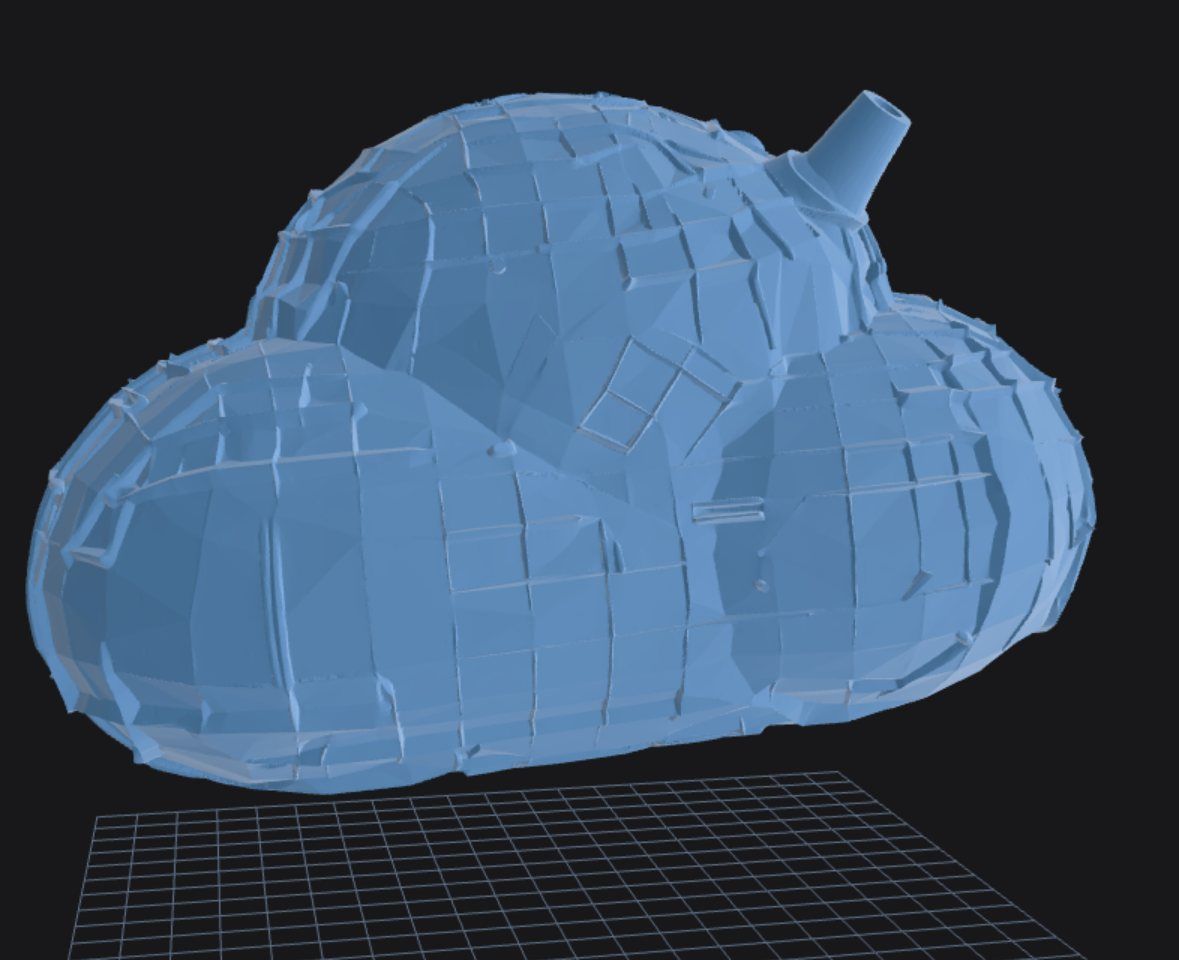
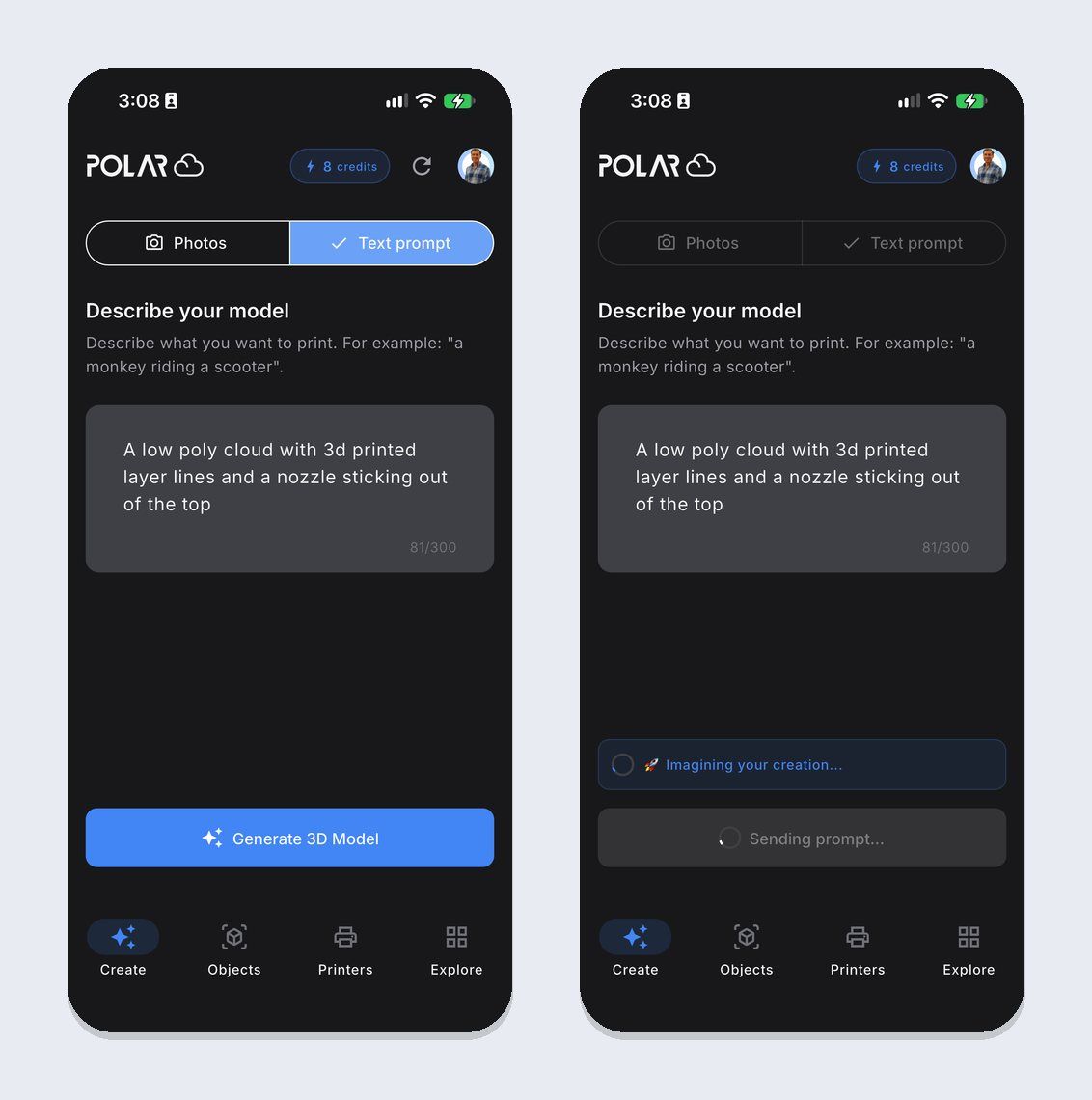
A low poly cloud with 3d printed layer lines and a nozzle sticking out of the top
The model at the top of this post is what came back. Here's how to do it yourself.
Step 1: Describe your model
Open the AI generator in the Polar3D mobile app and choose Text prompt. (On polar3d.com, choose From Text.) Then describe what you want to print.
You have up to 300 characters, which is plenty. A good prompt is usually one or two sentences.
Step 2: Generate
Tap Generate 3D Model. Polar Cloud sends your prompt off and starts "imagining your creation." It takes a few moments, and you don't have to wait on it: work on other things while it finishes.
When it's done, Polar Cloud does the part most AI generators skip: it optimizes the model for 3D printing. It heals holes in the mesh and gives the model a flat base, so it sits firmly on the build plate and slices without errors. You can see a side-by-side comparison with another AI generator on our AI 3D model generator page.
Step 3: Check it, then print it
Your model is saved automatically to your Objects library. Open it to orbit around it, zoom in, and use Move, Rotate and Scale to get it how you want it.
My cloud came back faceted and low poly, with a ridged texture across the surface and a nozzle on top, which is pretty much what I asked for.
When you're happy with it, tap print and choose a printer. Polar Print picks recommended settings and adds supports for you, or you can open it on the build plate and slice it yourself.
How to write a prompt that prints well
The AI will try to make whatever you describe. These tips help it make something that also prints well:
- Start with the object, then add details. "A fox" works. "A low-poly fox sitting upright, stylized, with a flat base" works better.
- Name a style. Low poly, cartoon, realistic, geometric, chunky, minimalist. Style words make a big difference.
- Describe the pose and proportions. Sitting, standing, curled up, tall and thin, short and wide.
- Ask for a flat base. Polar Cloud flattens the bottom anyway, but saying it helps the AI design the whole object to stand on it.
- Keep it chunky. Very thin legs, antennae, wires and floating parts are hard to print. Prompts like "thick" or "solid" help.
- One object per prompt. "A dragon" will come out better than "a dragon fighting a knight on a castle."
- Don't count on lettering. AI generators aren't good at spelling. Generate the shape, then add crisp text with Polar Cloud's Add Text tool (more on that below).
If the first result isn't quite right, change a few words and try again. Each generation uses one credit, so it's worth putting a little thought into the prompt.
When to use something else
Text-to-3D is great for characters, figurines, decorations, and ideas you can't easily model. It's not the right tool for everything:
- Precise parts with exact dimensions, like brackets, enclosures or replacement parts, are still a job for CAD.
- A real object you have in front of you comes out better from photos. See how to turn a picture into a 3D-printable model.
- QR codes, signs, nameplates, vases and keycaps come out exact with our free model generators, with no credits needed.
- Text on any model is easy with the Add Text tool, which embosses or engraves your words onto any model on your build plate, including AI-generated ones. Read more in our post on the generators.
What does it cost?
Each generation uses 1 credit. Credit packs start at $5 for 10 credits, and no subscription is required. Schools can request purchase orders for bulk credits. See the AI 3D model generator page for current packs.
Is it safe for the classroom?
Yes. Polar Cloud's AI generator scans prompts and results to block inappropriate content, so it's built to be safe for K-12 students. Administrators can also turn AI features off. And Polar3D does not use customer or student files to train AI models.
Frequently asked questions
Can I turn text into an STL?
Yes. Every model Polar Cloud generates is a slicer-ready STL, saved to your library. Slice and print it in Polar Cloud, or use it in your CAD program.
How long can my prompt be?
Up to 300 characters. One or two descriptive sentences is usually the sweet spot.
What if I don't like the result?
Adjust your prompt and generate again. Try adding a style word, describing the pose, or simplifying the request. Each generation uses one credit.
Can it make text or logos?
AI generators struggle with lettering. Generate the shape first, then use the Add Text tool to emboss or engrave crisp text onto it.
Try it yourself
Think of something you'd like to hold in your hand, describe it, and see what comes back. Create a free Polar Cloud account, or learn more about the AI 3D model generator.
Subscribe for updates
Get Polar Cloud news and help delivered straight to your inbox.
More from the blog