New in Polar Cloud: Make QR Codes, Signs, Vases and Keycaps in Your Browser

Sometimes you don't need to find a model. You need to make one. A sign for the makerspace door. A QR code that points to your class website. A planter for the windowsill. A replacement keycap with your initials on it.
Until now, that meant opening a CAD program, or searching a model site and hoping someone had already made something close enough.
Now you can make them right inside Polar Cloud.
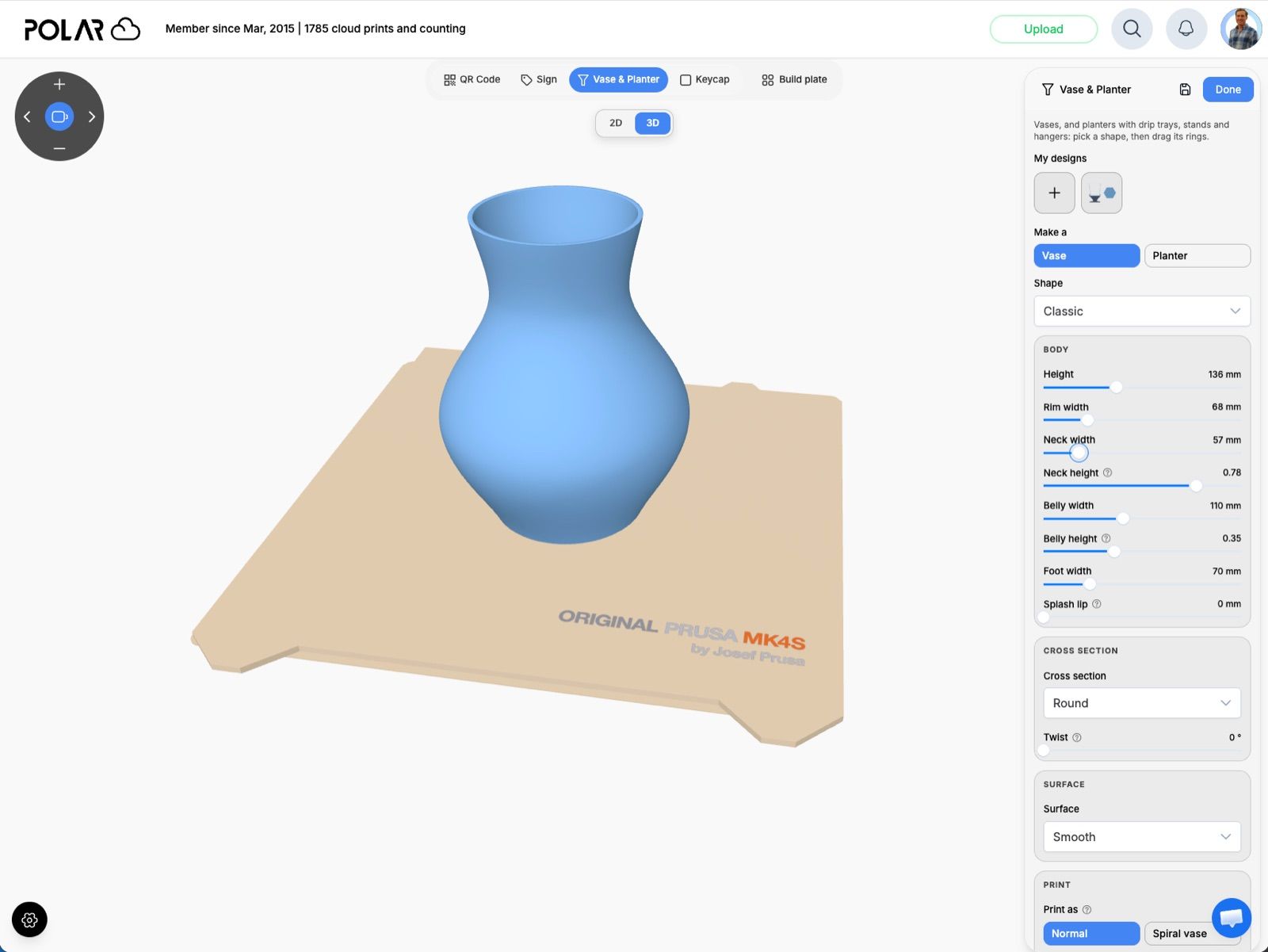
We've added Generators to the build plate: QR codes, signs, vases and planters, and keycaps. Pick one, adjust a few settings, watch the model update in 3D, then click Done to drop it on your build plate. It slices and prints like any other model.
And because it's the question we hear more than almost any other, we'll say it up front: you can add text to any model in Polar Cloud, not just the generated ones. More on that below.
Where to find them
Open a build plate and click Generate in the toolbar. You'll see a tab for each generator across the top: QR Code, Sign, Vase & Planter and Keycap. Switch between 2D and 3D views while you work, and save designs you like so you can come back to them later.
No account? No problem. Anyone can try the generators at polar3d.com/tools/model-generator, no sign-in required. Design your model right in the browser, and when you're ready to print, sign in and it opens on your build plate.
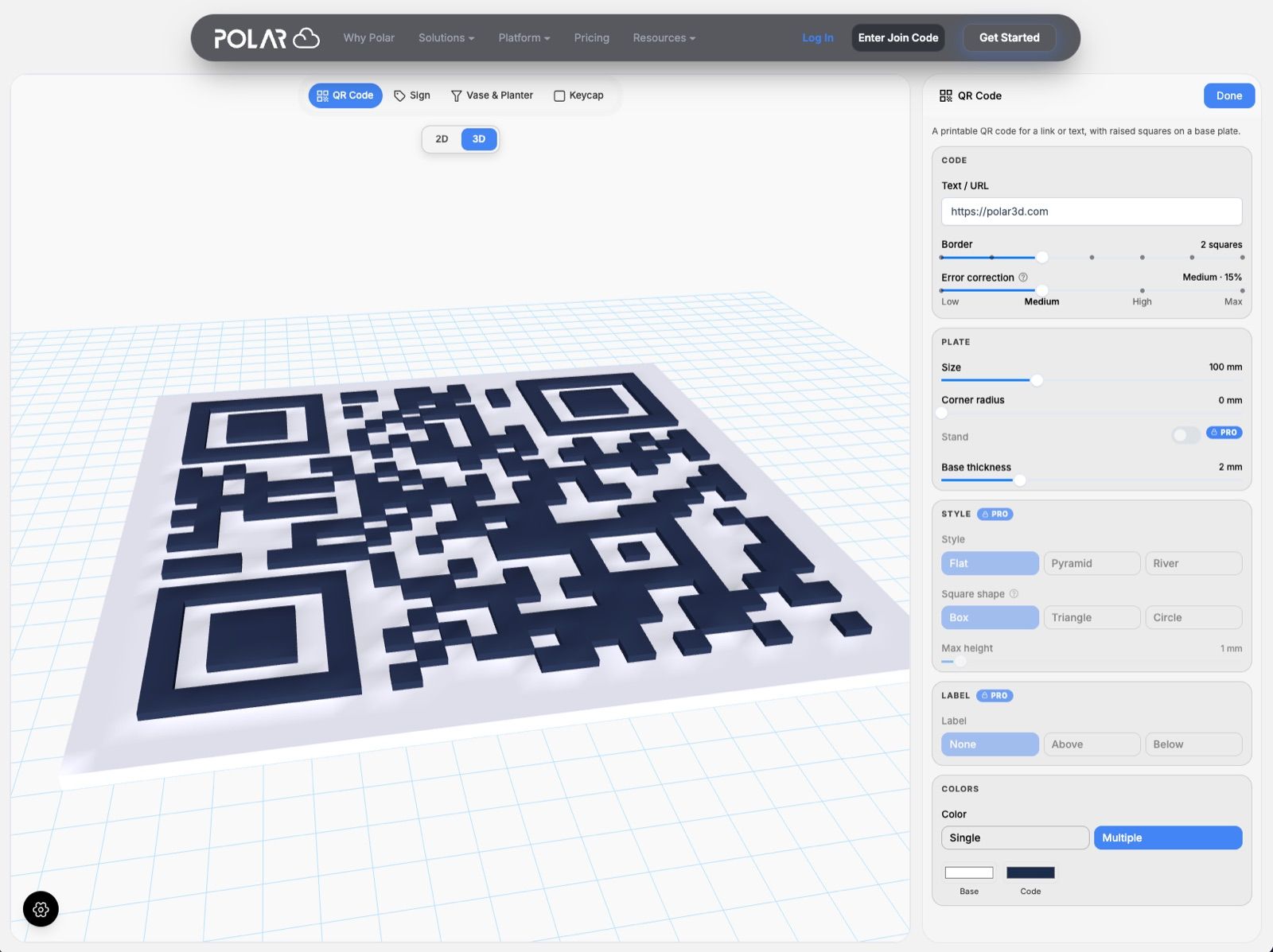
QR Code
Type a link or any text, and our free 3D printable QR code generator turns it into a QR code with raised squares on a base plate.
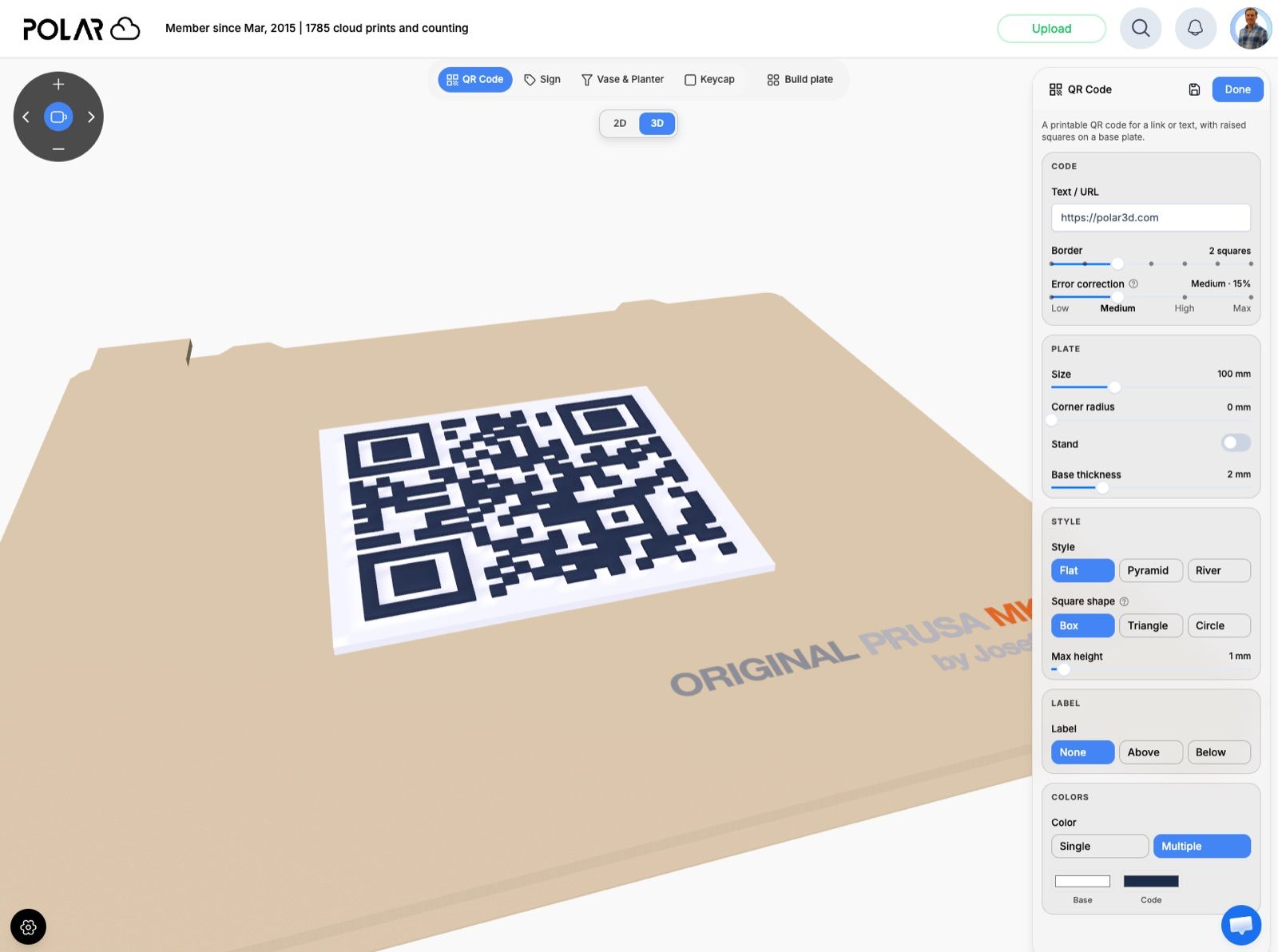
Every user can:
- Enter any link or text, and set the border around the code.
- Set the error correction. Higher levels keep the code scannable even if part of it gets scuffed or covered.
- Size the plate from 30 mm to 250 mm, round its corners, and set the base thickness.
- Print in a single color, or pick separate colors for the base and the code if your printer handles multiple colors.
With a Polar Cloud subscription, you can also choose a style (Flat, Pyramid or River) and a square shape (box, triangle or circle), add a label above or below the code, and print a stand so it sits upright on a desk.
Think Wi-Fi network cards, table tents for events, a link to a student's portfolio, or a QR code on a classroom door that opens the class schedule.
Sign
Pick a template, then make it yours: door hangers, bag tags, business cards, pet tags, shop signs, table markers, or a custom shape.
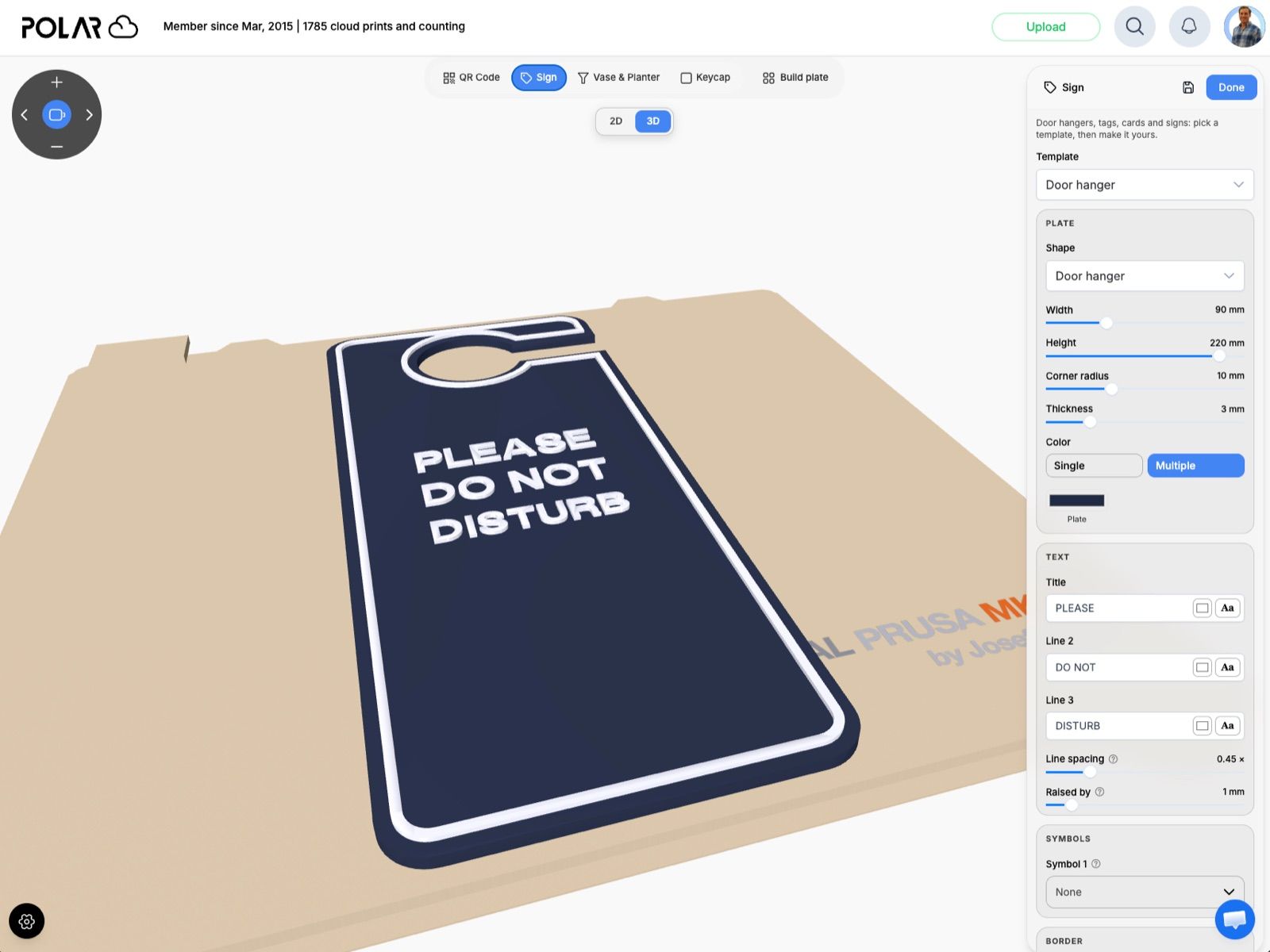
Each line of text gets its own font and size. Add a border and a hanging hole, choose how far the text is raised, and print in one color or several. A subscription adds a third line of text, symbols, and a stand.
Vase & Planter
This one is a lot of fun. Start from a shape (classic, bulb, bottle, cylinder, tapered, hourglass, bowl or flower pot), then shape it with sliders for the rim, neck, belly and foot. You can also drag its rings directly.
From there:
- Change the cross section from round to polygon, star and more, and add a twist.
- Give the surface a texture like ribs, ridges, strips, Voronoi or low poly.
- Print it as a normal model, or in spiral vase mode for a fast, seamless single-wall print.
Switch to Planter for a flower pot shape. With a subscription, you get the practical parts too: a drainage hole, a matching drip tray, a self-watering option, hanging loops, or a pedestal or tripod stand.
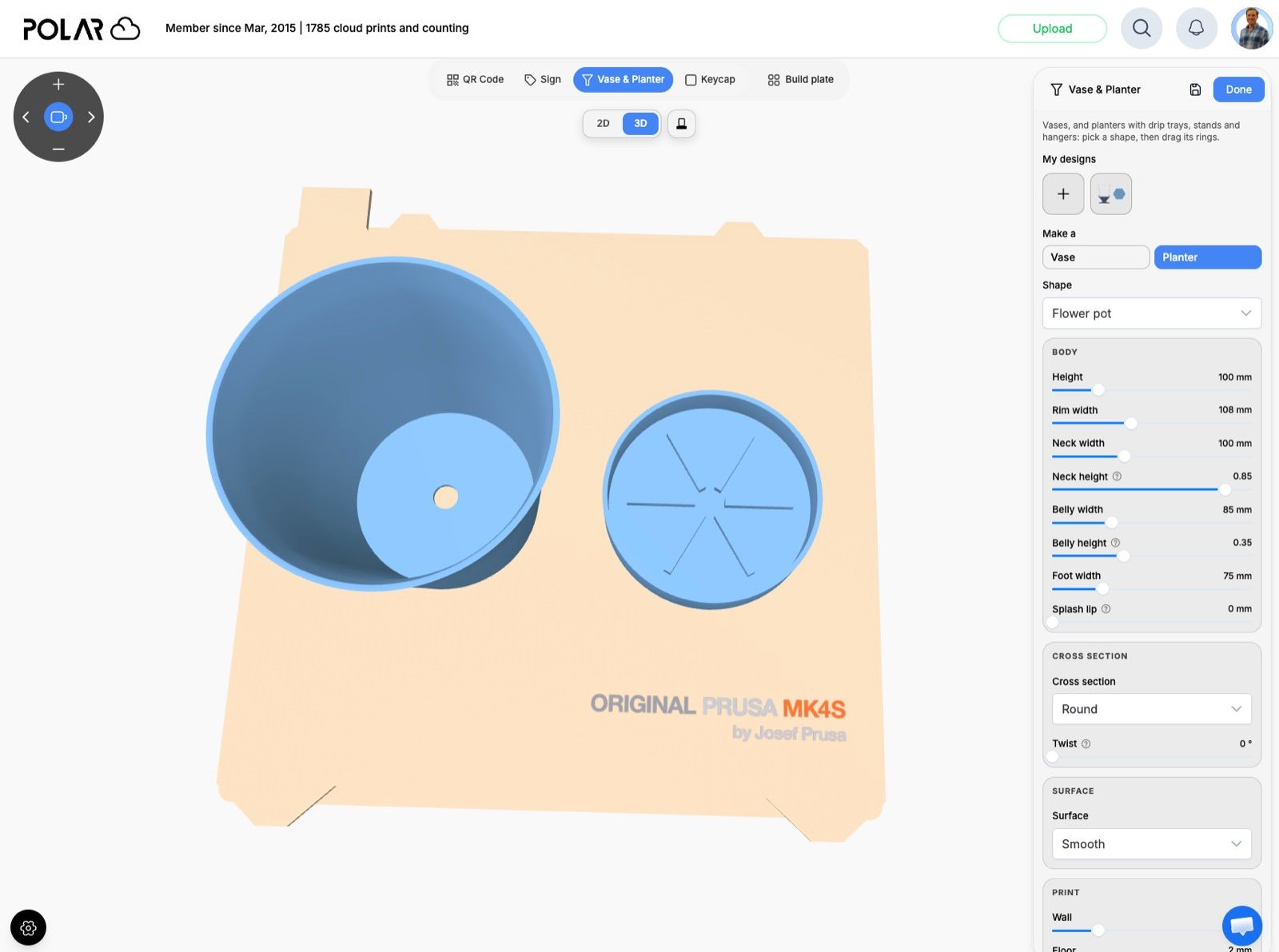
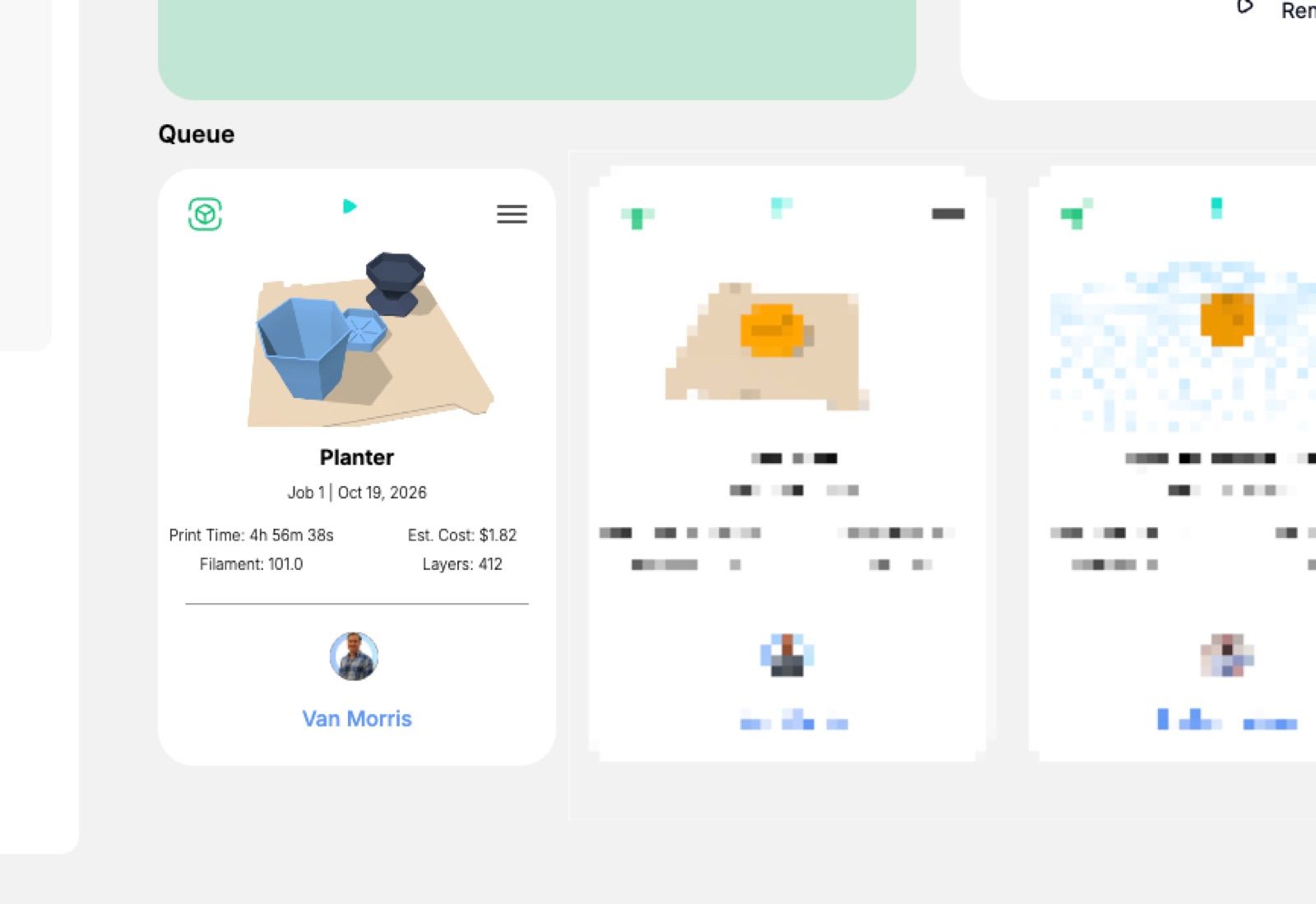
Click Done, and your planter heads to the print queue like any other job, with its print time, filament use and estimated cost.
Keycap
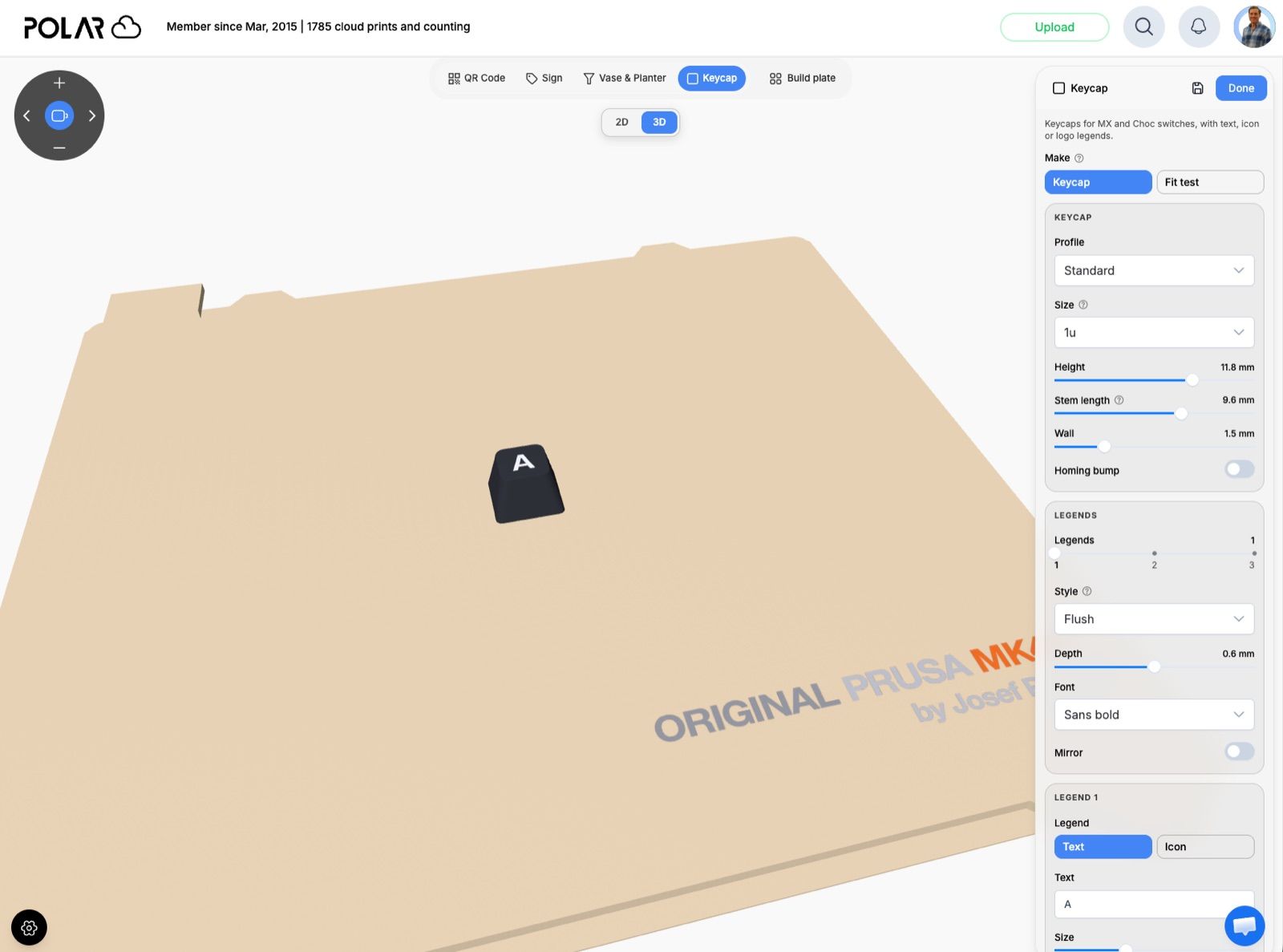
For the mechanical keyboard crowd: design keycaps for MX and Choc v1 switches. Every keycap option is available to every user.
- Pick a profile: Standard, Low, Square, Round, Round tapered or Thocky.
- Choose a size, from a 1u key all the way to a 6.25u spacebar.
- Add up to three legends, each one text or an icon, and arrange them how you like.
- Make the legends flush, raised, engraved, or shine-through for backlit keyboards.
- Add a homing bump for your F and J keys.
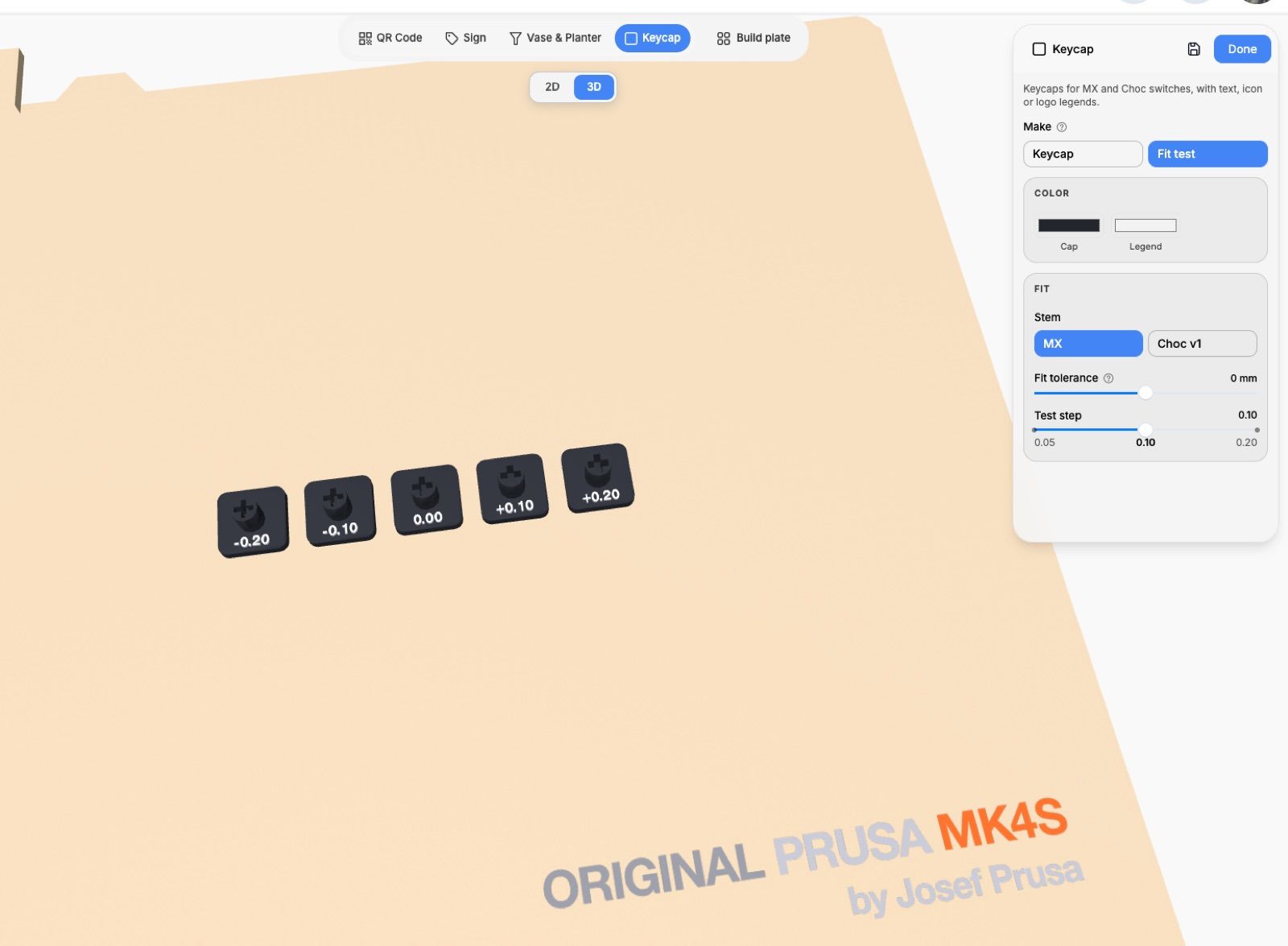
Every printer is a little different, and a keycap that's even a fraction of a millimeter off won't fit on the switch. So before you print a whole set, switch Make to Fit test. Polar Cloud prints a row of small test caps, each with a slightly different stem tolerance and labeled with its offset. Try each one on a switch, see which fits best, and use that setting for the rest of your keycaps.
Yes, you can add text to any model
This is the question we get more than almost any other: "Can I put my name on this?"
Yes! And not just on generated models. The Add Text tool works on any model on your build plate: something you uploaded, something from the object library, or something you just generated. You don't even need to select the model first.
- Click the Add Text button (Tt) in the toolbar.
- Choose Emboss to raise the text off the surface, or Engrave to cut it in.
- Type your text, pick a font, and set the size, thickness and rotation.
- Hover over the model. Your text follows the surface, so you can see exactly where it will go.
- Click to place it.

Put a student's name on their project. Label a part with a version number. Add a date to a gift. Mark which printer a calibration print came from. It's all one tool, and it works on everything.
Try them today
The Generators are live now. Open a build plate and click Generate, or try them first at polar3d.com/tools/model-generator without an account. Want the extra styles, stands, symbols and planter parts? They're included with a Polar Cloud subscription.
We'd love to see what you make. And if there's a generator you'd like us to build next, tell us!
Create a free Polar Cloud account and start generating.
Subscribe for updates
Get Polar Cloud news and help delivered straight to your inbox.
More from the blog