How to Turn a Picture Into a 3D-Printable Model

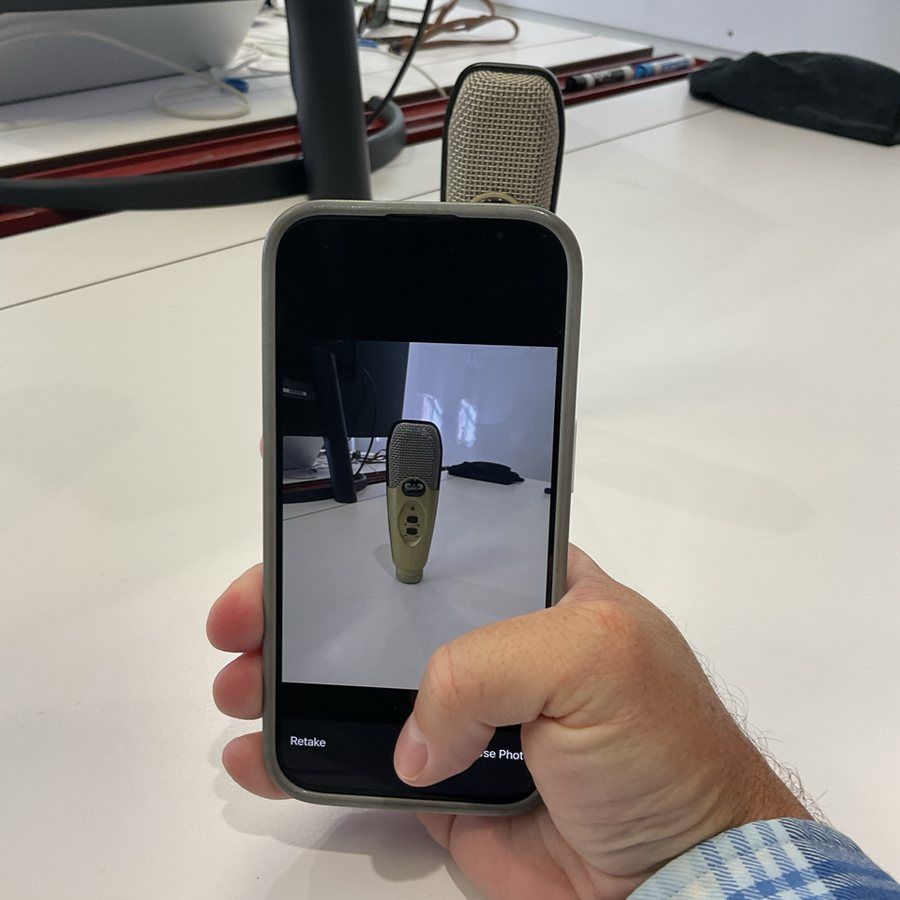
I had a problem on my desk: a USB condenser microphone with no good place to sit. I wanted to design a proper stand for it. But to design a stand, you need the thing it holds. Its shape, its size, where the buttons are, where the cable comes out.
You could measure everything with calipers and model it by hand in CAD. Or you could take a few pictures.
With Polar Cloud, you can turn photos of a real object into a 3D-printable model in a few minutes. Here's exactly how I did it, start to finish, with nothing staged.
Why turn a picture into a 3D model?
A 3D model of a real object is useful in more ways than you might expect:
- Design around it. Bring the model into your CAD program and build a stand, mount, case or holder that fits it.
- Print a test copy. Print the object itself to check the fit of something you're designing, without needing the real thing at your bench.
- Make a replica or a keepsake. Figurines, souvenirs, a model of a favorite mug.
- Teach with it. Students can photograph something from home and hold a printed version in class.
In my case, having the model meant I could design the stand at my desk and print it to test back at my shop, with the real microphone staying right where it was.
Step 1: Take your photos
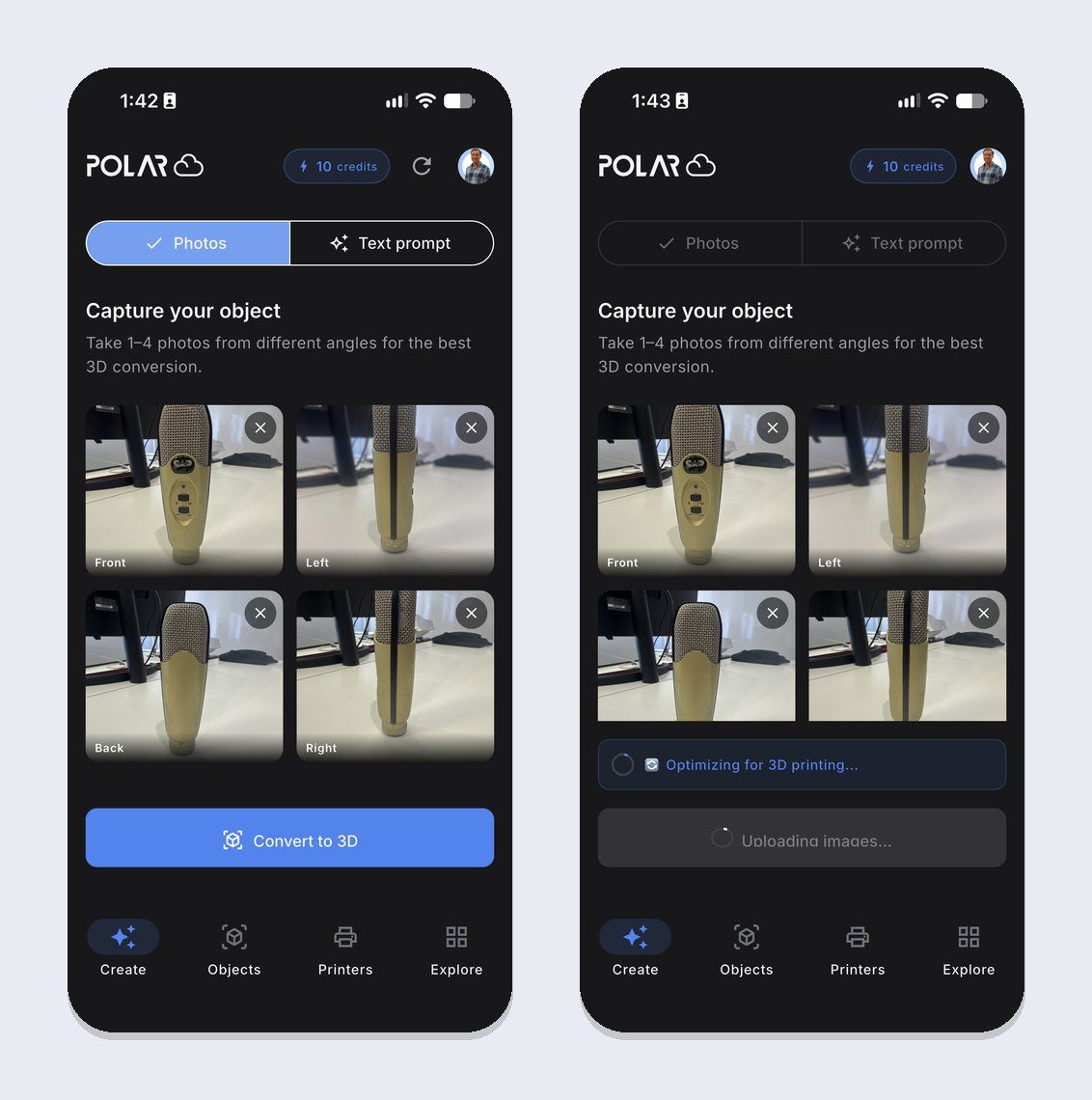
Open the AI generator in the Polar3D mobile app and choose Photos. You can take one to four photos, and the app labels each angle for you: front, left, back and right.
One photo works, but more angles give the AI more to go on. Since I wanted the shape to be right all the way around, I took all four.
Tips for better results
The photos you take make the biggest difference in the model you get back:
- Fill the frame. Get the whole object in the shot, centered, with a little room around it.
- Keep the background simple. A plain table or wall works better than a busy desk. (Mine was a little busy, and it still came out well.)
- Use even light. Avoid harsh shadows and bright reflections.
- Shoot each side from the same distance and height. Walk around the object rather than zooming in and out.
- Matte objects work best. Very shiny, transparent or thin, wiry parts are harder for any AI to reconstruct.
Step 2: Convert to 3D
Tap Convert to 3D. Polar Cloud uploads your photos and generates the model. Then it does the part most AI generators skip: it optimizes the model for 3D printing.
Many AI 3D generators make models to look at, not to print. Their meshes can have holes, or a rounded bottom where only a sliver touches the build plate. Polar Cloud automatically heals the geometry and gives every model a flat base, so it sits firmly on the bed and slices without errors. You can see a side-by-side comparison on our AI 3D model generator page.
Step 3: Check your model
The conversion takes a few moments, and you don't have to sit and watch it. Feel free to work on other things while it finishes. The model is saved automatically to your Objects library, so there's nothing to download and re-upload.
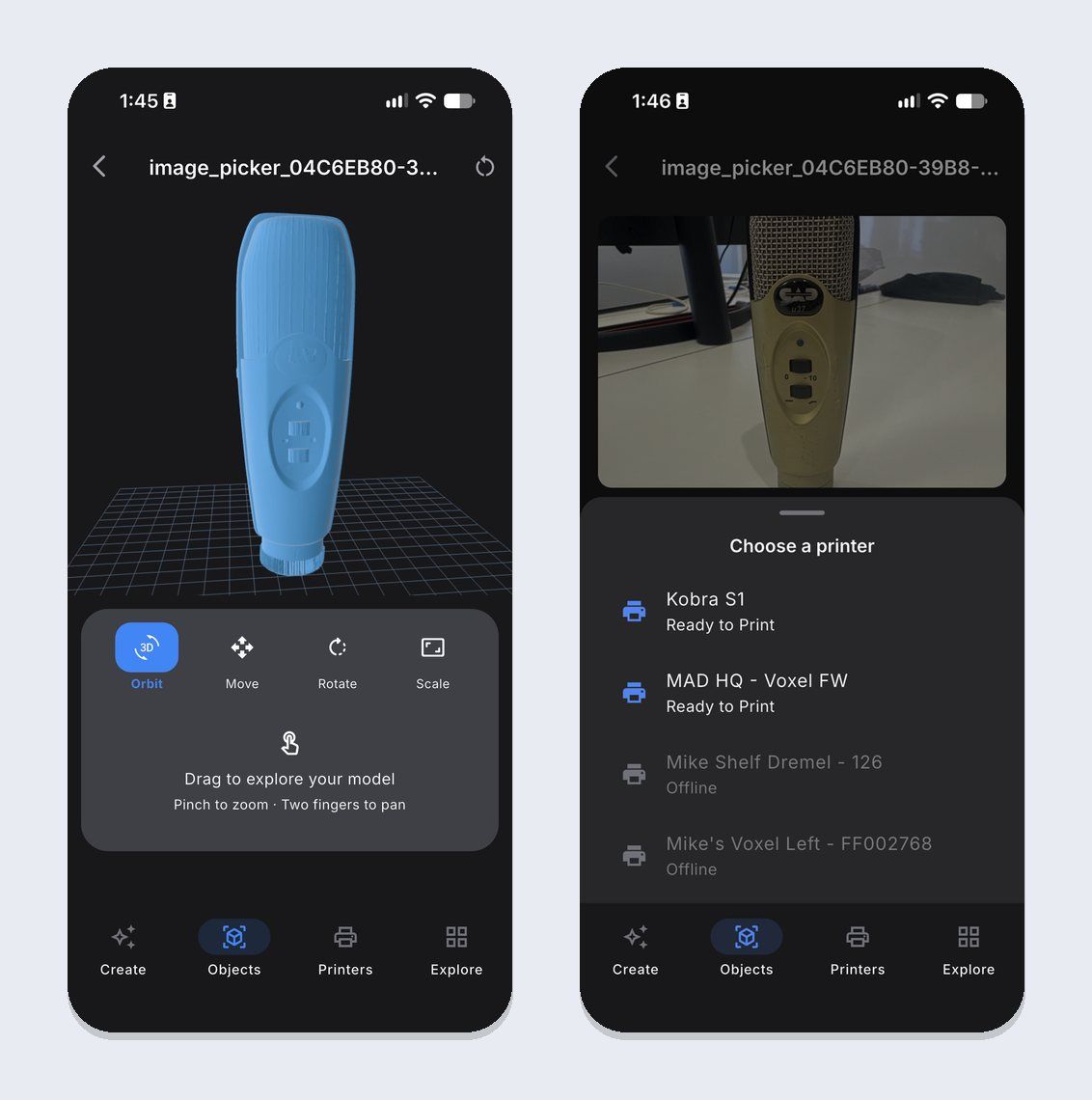
Open it to take a look: drag to orbit around it, pinch to zoom, and use Move, Rotate and Scale to get it how you want it. The details came through nicely on mine: the grille texture, the badge, and even the buttons on the front.
Step 4: Print it, or take it into CAD
From here, you have two paths.
Print it. Tap print, choose one of your printers, and send it. Polar Print picks recommended settings and adds supports for you, or you can slice it yourself on the build plate if you want full control.
Design around it. The model is a slicer-ready STL, so you can bring it into your CAD program and use it as a reference: build a stand around its base, a cradle that matches its curves, or a mount that clears its buttons.
One honest tip: an AI model is a very good approximation of your object, not a precision measurement. Before you design a tight-fitting part around it, measure one or two key dimensions with calipers (like the diameter of the base) and scale the model to match. Then print a quick test piece before the full part.
Prefer your computer?
You don't need the app. You can do all of this at polar3d.com, too: open the AI generator, choose From Image, and upload a PNG or JPG. On the web you can add up to four reference angles and optionally remove the background for a cleaner result.
What does it cost?
Each generation uses 1 credit. Credit packs start at $5 for 10 credits, and no subscription is required. Schools can request purchase orders for bulk credits. See the AI 3D model generator page for current packs.
No photo? Start with words
Don't have the object in front of you, or want to make something that doesn't exist yet? You can describe it instead. Read our guide on how to turn a text prompt into a 3D-printable model.
Frequently asked questions
How many photos do I need?
One is enough to get a model. Up to four, from the front, left, back and right, gives the most accurate shape all the way around.
Can I turn a picture into an STL?
Yes. Every model Polar Cloud generates is a slicer-ready STL, saved to your library. Slice and print it in Polar Cloud, or use it in your CAD program.
Will the model be the exact size of my object?
It will be close in shape, but not a precise measurement. Measure a key dimension of the real object and scale the model to match before designing parts that need a tight fit.
Can I use a photo I already have?
Yes. Upload a PNG or JPG from your computer at polar3d.com, or choose a photo on your phone. A clear product shot or a sketch can work too.
Do my photos get used to train AI?
No. Polar3D does not use customer or student files to train AI models.
Try it yourself
Find something on your desk, take four photos, and see what comes back. Create a free Polar Cloud account, or learn more about the AI 3D model generator.
Subscribe for updates
Get Polar Cloud news and help delivered straight to your inbox.
More from the blog