How to Manually Upgrade or Downgrade the Firmware on Your Flashforge Adventurer 5M or 5M Pro

Most of the time, your Adventurer 5M or 5M Pro updates itself. When it's on Wi-Fi or Ethernet, it checks Flashforge's servers and offers new firmware. Most people should just accept that and move on.
Sometimes you need a specific version instead.
Why install firmware manually?
Some updates feel like two steps forward and one step back. A new release might be all about features you don't use, and it might make the printer less reliable in ways you do care about. If an earlier version worked better for you, going back to it is a reasonable choice.
Some versions work better with Polar Cloud than others. If your printer got less dependable on Polar Cloud after an update, the version it's running may be the cause.
It can clear up connection problems that a factory reset doesn't. Reinstalling firmware resets more of the printer than a factory reset does. Try it if you see strange cloud connection behavior, for example:
- The printer won't connect with new credentials.
- The printer shows a MAC address error when it shouldn't.
It also helps when the printer has no internet access (common on school networks), when the online update keeps failing, or when the printer is stuck on the boot screen.
⚠️ Read this first: be careful
Manual firmware changes are not risk-free. A firmware package touches more than the touchscreen software. It can update the printer's control board (MCU), its libraries and other low-level parts. These pieces have to stay compatible with each other.
If you jump too far ahead, you might not be able to come back safely. A newer release can change low-level parts that older firmware doesn't expect. After that, going back can cause errors or leave the printer unable to boot. Flashforge has already put this kind of no-rollback warning on some firmware for its other printers, so it's a real possibility.
We recommend doing this with Flashforge support guiding you, especially when you're downgrading or skipping several versions. Tell them which version you're on and which one you want, and ask whether that move is safe.
🛑 Make sure you have the right firmware for your model
This is the most important step in this guide. The Adventurer 5M and the Adventurer 5M Pro look alike, but they use different firmware.
Never install 5M firmware on a 5M Pro, and never install 5M Pro firmware on a 5M.
Check the file name before you copy it to the USB drive:
| Your printer | The file name starts with |
|---|---|
| Adventurer 5M | Adventurer5M- (example: Adventurer5M-5.2.0-2.2.3-20261027.tgz) |
| Adventurer 5M Pro | Adventurer5MPro- (example: Adventurer5MPro-5.2.0-2.2.3-20261027.tgz) |
Only one letter group separates them: Pro. Read the name slowly, and be sure you know which model you have. The 5M Pro is the fully enclosed model with acrylic doors and a built-in camera. The 5M has an open frame.
Before you start
Write down your current version. On the printer's touchscreen, open the info screen (the i icon). The version is shown as two numbers, like 5.1.9-2.2.3. The first is the software version and the second is the control board version. If something goes wrong, you and Flashforge support will need this number.
Find the version you want. Read the release notes in Flashforge's Adventurer 5M Series firmware update log. Look for the version where things last worked well for you.
Download the file from Flashforge. Each model has its own download page, which lists the current firmware and several older versions:
Start from the page for your model. The firmware downloads as a single .tgz file, and that file is what goes on the USB drive.
If Flashforge no longer lists the version you need, the community-run FlashForge Firmware Updates mirror keeps USB update files for the releases it has archived. Flashforge doesn't run this mirror, so use the official pages first.
Prepare a USB drive formatted as FAT32. The printer can't read exFAT or NTFS. Formatting erases the drive, so copy any files you need off it first.
- Windows: right-click the drive in File Explorer, choose Format, select FAT32, then click Start.
- Mac: open Disk Utility, select the drive, click Erase, and choose MS-DOS (FAT) as the format.
Step by step
The printer has two power controls: the main power switch on the back and the power button on the front panel. You'll use both.
- Check the file name against your model one more time. (See the table above.)
- Copy the
.tgzfile to the root of the USB drive, not inside a folder. Don't unpack it, and don't rename it. - Make sure the drive holds only one firmware file. If it has more than one, the printer may install the newest one, which is not what you want when downgrading.
- Turn the printer off with the main power switch on the back.
- Insert the USB drive.
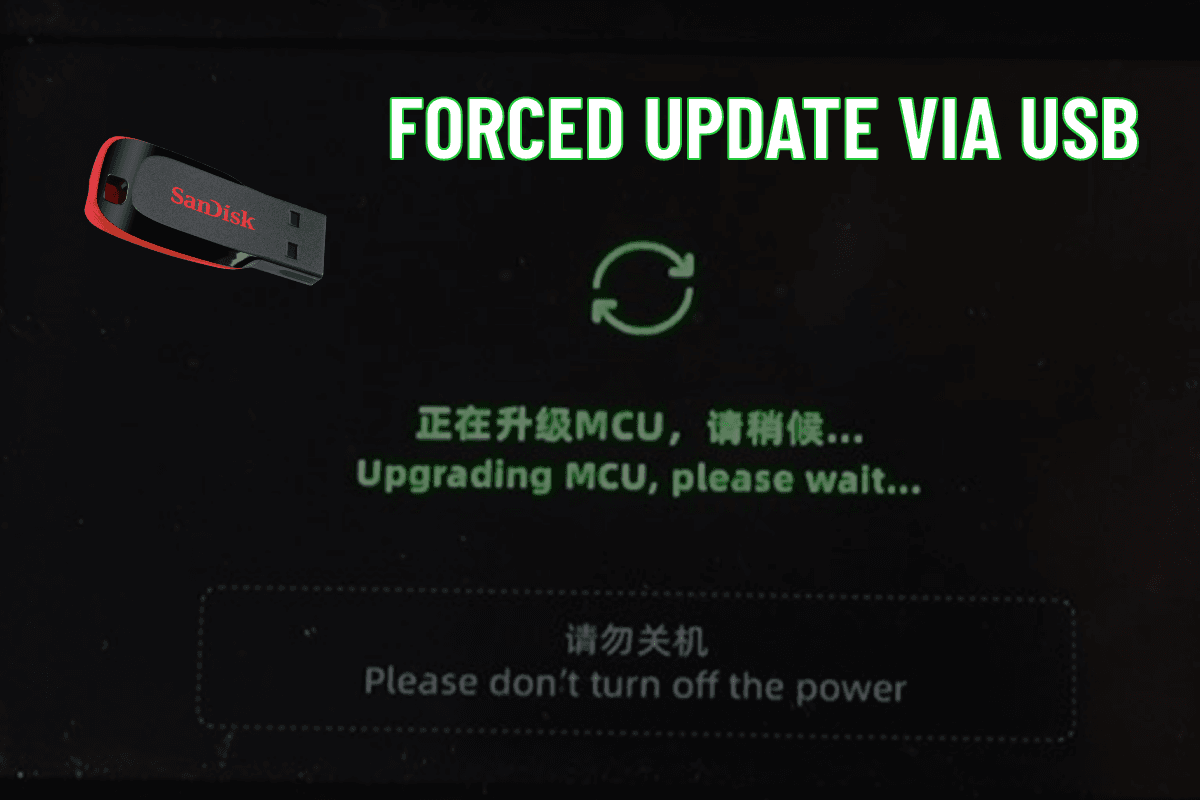
- Flip the main power switch back on, then press the power button on the front panel. The printer should detect the file and show the Upgrading screen.
- Wait. Don't turn off the printer or remove the drive while it's upgrading.
- When the update finishes, flip off the main power switch on the back, then unplug the USB drive. If you leave the drive in, the printer may install the same firmware again at the next startup.
- Flip the main power switch back on and press the power button on the front panel. When the printer is up, check the version on the info screen.
A USB update normally keeps your settings and the files stored on the printer.
If the update doesn't start
If the printer boots normally and ignores the drive, check that:
- The drive is FAT32.
- The file is in the root folder, not in a subfolder.
- The file name is unchanged. Browsers sometimes add
(1)when you download the same file twice. - The file is still a
.tgz. Some computers unpack archives automatically after downloading. If yours did, download the file again and turn off that setting. - The file matches your model, 5M or 5M Pro.
- You inserted the drive while the main power switch was off, before powering the printer on.
If it still won't start, try a smaller USB drive from a different brand.
If the printer won't boot normally after an update, stop. Don't keep trying other firmware files. Contact Flashforge support with the version you were on and the version you tried to install.
After the update
If you print from Polar Cloud, check that your printer appears as online in your printer list before you queue the next job. If you're reconnecting from scratch, our printer connection guides walk you through setup.
Further reading:
- Makers Empire: How do I update the firmware on my Flashforge Adventurer 5M Pro using a USB stick?
- Flashforge: Adventurer 5M Series firmware upgrade (online updates)
- Flashforge: Adventurer 5M Series firmware update log
More guides for your Adventurer 5M:
Subscribe for updates
Get Polar Cloud news and help delivered straight to your inbox.
More from the blog