Multipart 3MFs, Paint, and Per-Part Colors: Multicolor Printing Gets Easier in Polar Cloud

Multicolor and multimaterial files are everywhere now: figurines split into a dozen parts, AI-generated models, and MakerWorld projects made for an AMS. They're great to print, but a big multipart file can be a lot to wrangle.
Here's a real example. A user brought us a 10-part figurine 3MF (hair, arms, legs, cape and a base disc, using 9 filaments). The model was simply bigger than the printer it was headed for. That's common with AI-generated models, which often come out at the wrong scale (millimeters vs. inches). Polar Cloud used to drop a file like that in as-is: parts stacked on top of each other and hanging off the plate, with no easy way to fix it.
So we rebuilt the workflow for everyone who prints from the cloud. Watch the full walkthrough on X (about a minute), or read on.
Fit Parts to Your Printer
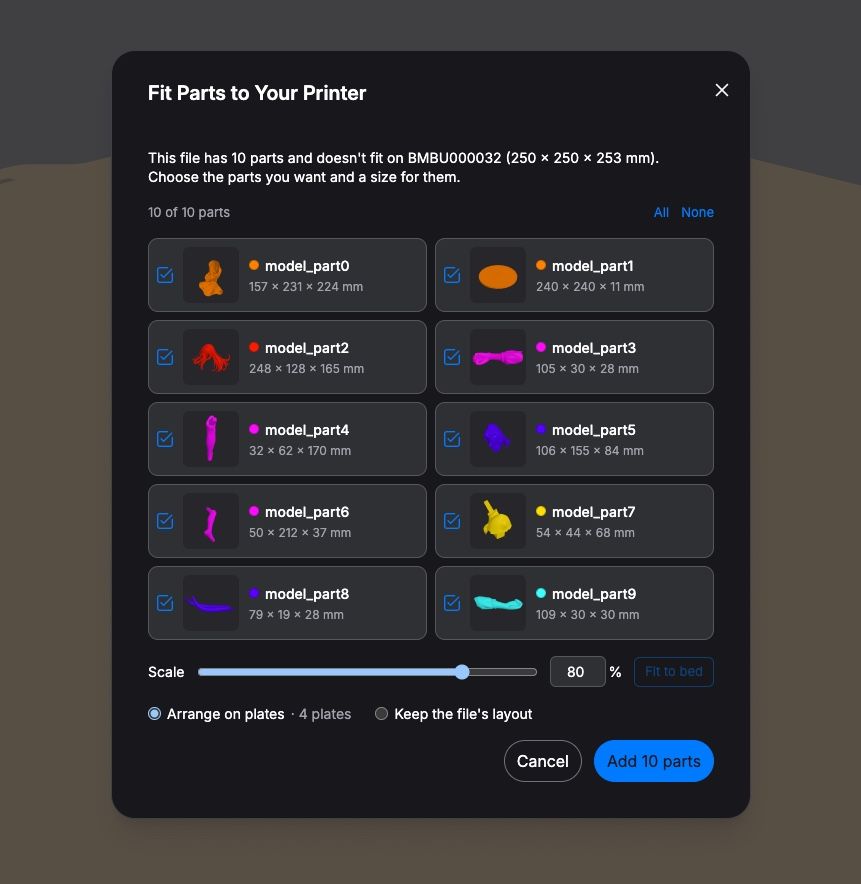
When you import a multipart 3MF that doesn't fit your printer, Polar Cloud catches it right away and opens a Fit Parts to Your Printer window, instead of leaving you with a pile of parts hanging off the bed.
Here's what you can do in it:
- See every part with its own thumbnail, color and size in mm, so you know exactly what's in the file.
- Choose which parts to print. Already printed the base, or don't need the stand? Uncheck it.
- Scale everything together with one slider, or click Fit to bed to get the largest size that fits. Every part shrinks by the same amount, so they still fit together after printing.
- Arrange on plates. Each part gets its own spot, with room around it, across as many build plates as it needs. The window tells you the count first (for example, "4 plates"). If you'd rather keep things as they are, choose Keep the file's layout.
Then click Add parts, and they land in our MultiPlate workspace, ready to slice. Each part keeps its color from the file.
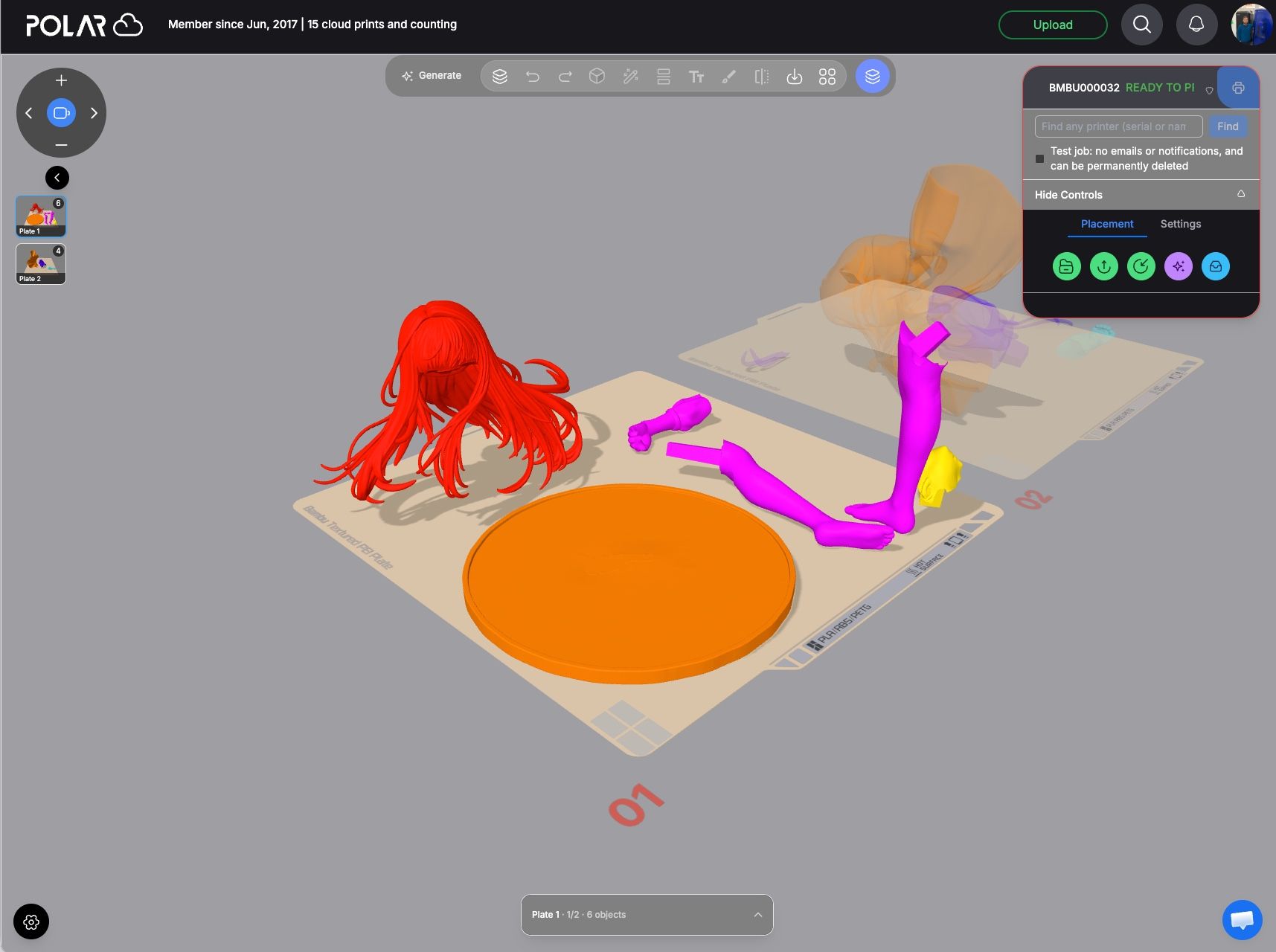
Polar Cloud also leaves out unusable bed areas, like the cut-out corner on Bambu Lab beds. With a Polar Cloud subscription, you can slice and queue every plate at once, each as its own print job.
Give each part its own filament
Every object in Plates & Objects now has a color swatch. Click it, and a Print this part in menu lists your printer's AMS slots. Make the cape red, the base black and the hair yellow, and Polar Cloud sends each part to the right tray.
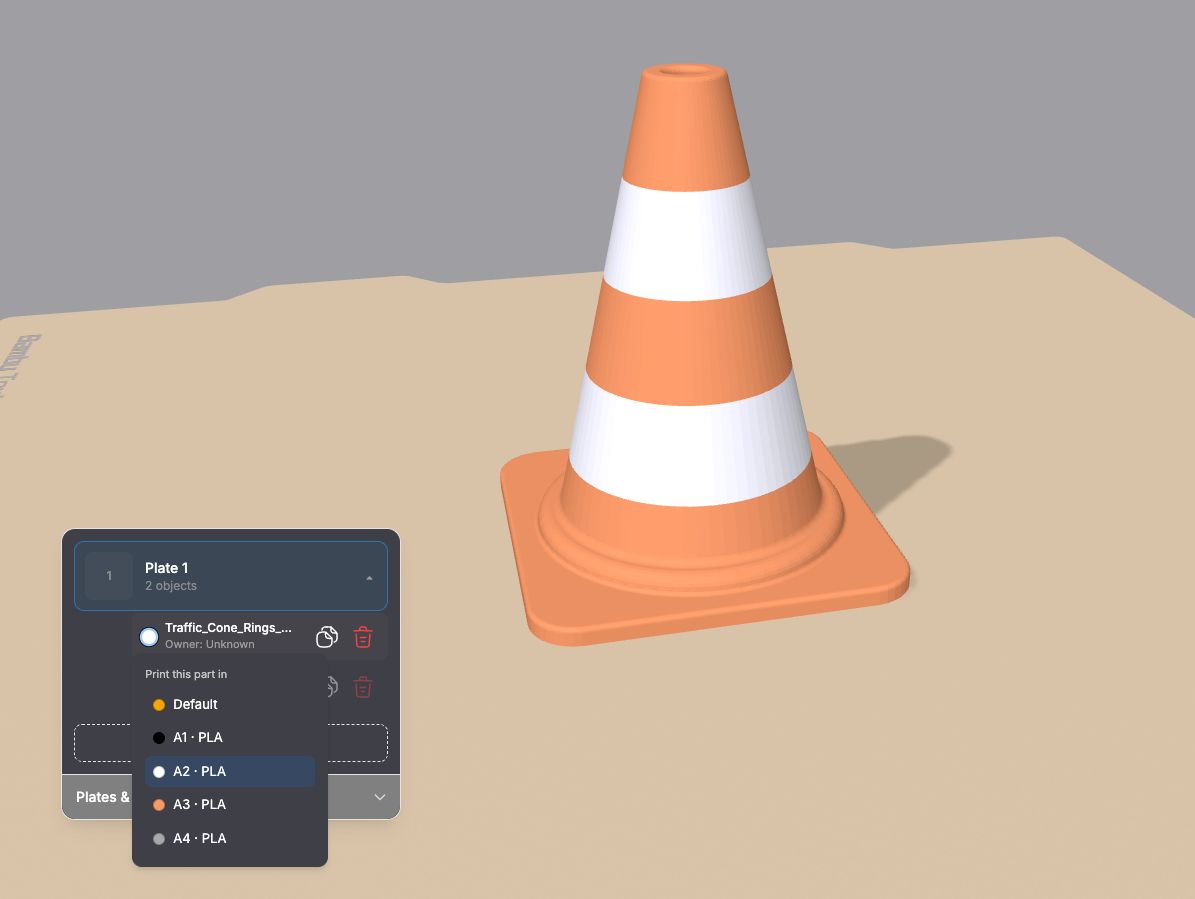
This works on parts that came in as one solid color too. Our test was a traffic cone printed from two STLs: orange body, white rings, each from its own AMS slot.
Paint in color, layer by layer
For single-piece models, the Paint tool works by layer height:
- Pick a base filament. Everything you don't paint prints in this one.
- Pick a paint color. The swatches come from the AMS on your selected printer, and you can add a color or change any of them.
- Click or drag on the model to paint bands of layers. The eraser sets layers back to the base filament, and Clear Paint starts over.
It's perfect for keychains, signs and name tags. This one prints its base in orange from AMS slot 3, and the raised letters are painted black from slot 1, so the switch happens right where the lettering starts.
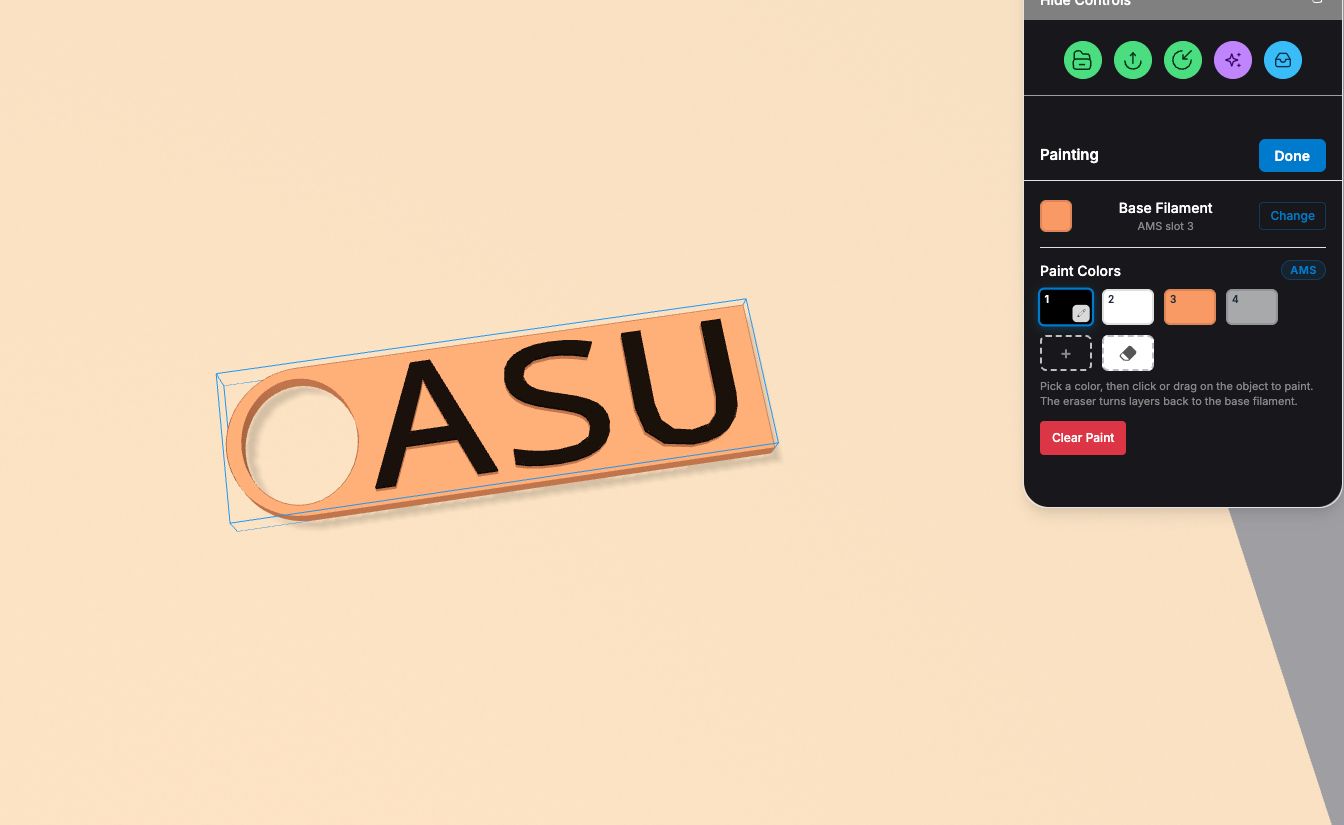
Painting works on rotated models too, so you can turn the model to its best print angle first.
Supports in their own filament
Under Advanced → Support, turn on supports and pick a Support Filament and an Interface Filament from your AMS. Use a cheaper or contrasting filament for the support body, and a separate interface layer where the supports touch the model, so they break away cleanly.
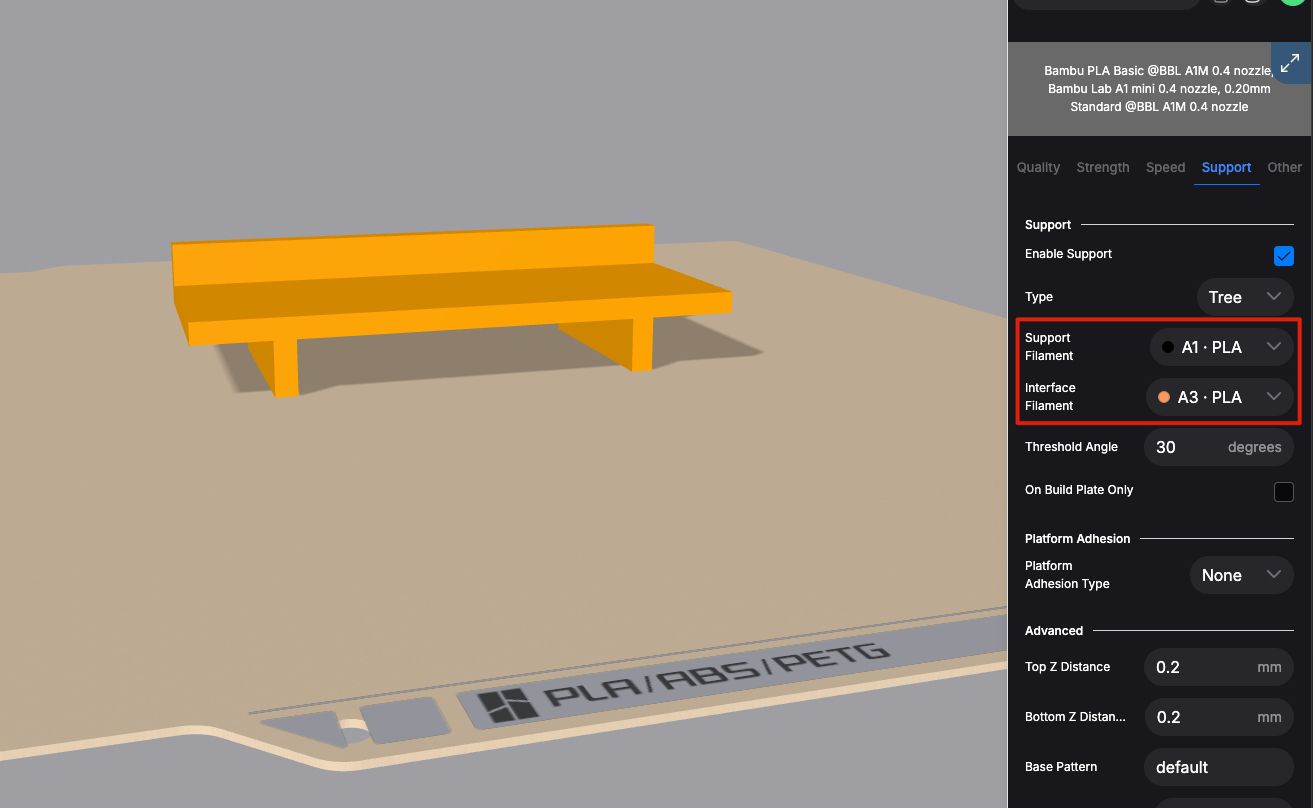
The details that keep your colors right
Getting the colors right on the printer takes more work than it looks. Here's what Polar Cloud now does for you:
- Colors match your AMS trays. Every color you use is matched to the closest loaded tray, so blue doesn't print where white should.
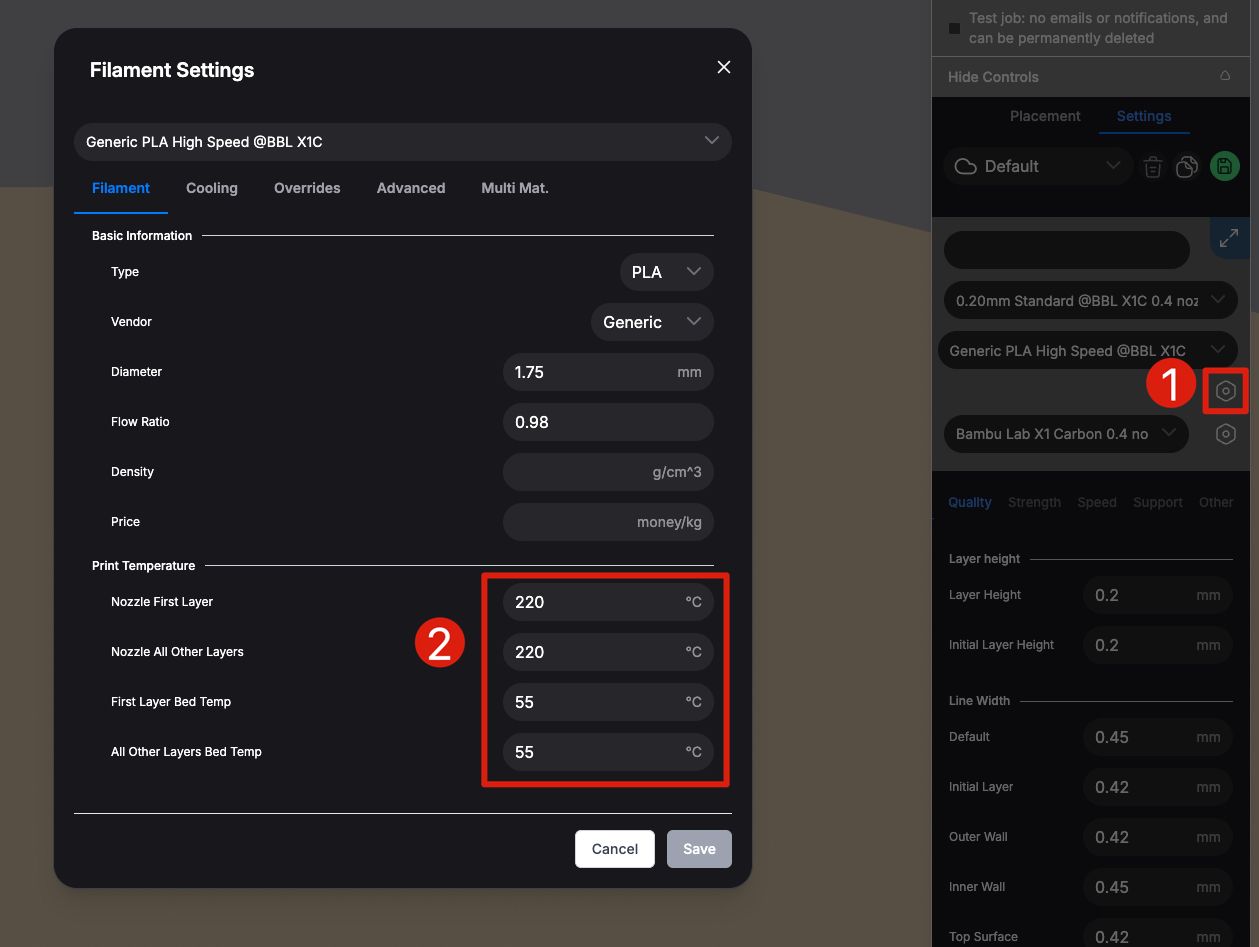
- Each filament gets its own settings. A PETG tray used as a second color prints at PETG temperatures, not PLA ones.
- Polar Cloud warns you about too many colors. If a plate needs more colors than you have loaded, you'll see a warning before you queue the job.
Try it
Open a multipart 3MF from MakerWorld, upload something you made with an AI model generator, or paint a keychain in two colors. Open the build plate, or create a free Polar Cloud account and connect your printer first.
Subscribe for updates
Get Polar Cloud news and help delivered straight to your inbox.
More from the blog