How to Turn On Filament Runout Detection on the Flashforge Adventurer 5M and 5M Pro

Few things in 3D printing hurt more than coming back to a long print and finding the nozzle still moving with no filament coming out. The spool ran dry two hours ago, and the printer kept going, laying down nothing.
The Flashforge Adventurer 5M and Adventurer 5M Pro have a filament runout sensor built in to prevent exactly that. When it's on, the printer notices the filament is gone and pauses the print so you can load a new spool and pick up where it left off.
The catch: the sensor only helps if filament detection is turned on, and if your filament actually runs through it. We'll cover both.
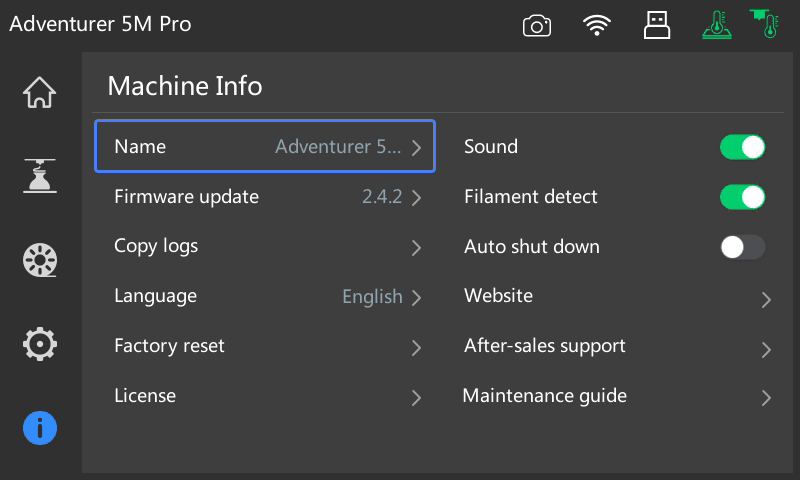
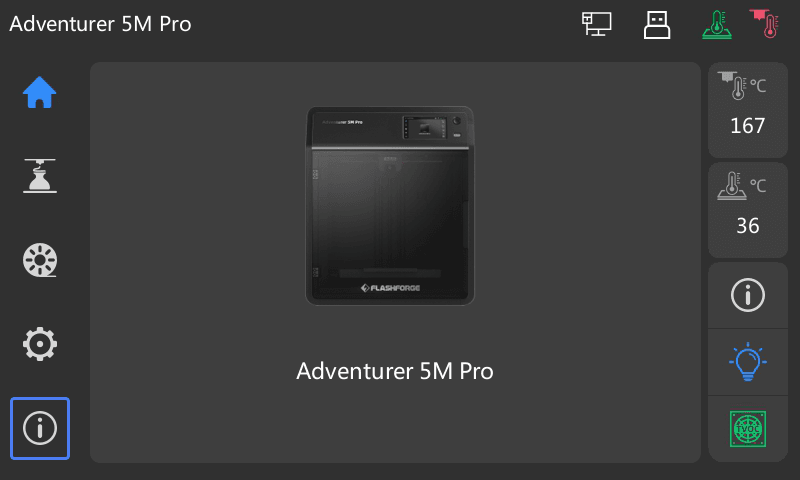
Step 1: Tap the Info button
From the home screen on the printer's touchscreen, tap the Info button (the circled "i") at the bottom of the menu on the left side of the screen.
Step 2: Turn on "Filament detect"
The Machine Info screen opens. In the right-hand column, find Filament detect and tap the switch so it turns green.
Green means filament runout detection is on. Gray means it's off.
The setting is saved on the printer, so you don't need to turn it on again for every print. It's still worth a glance after a firmware update or a factory reset, since a reset puts settings back to their defaults.
Step 3: Feed the filament the factory way
This is the step people miss, and it's the one that causes the most headaches.
The runout sensor on the Adventurer 5M series is a mechanical switch, not an optical sensor. The filament physically presses the switch as it passes through. If the filament isn't running through the sensor, the switch never gets pressed, and the printer thinks the spool is empty.
If you route your filament a different way, one that skips the factory PTFE tube, filament detection will trip constantly and you won't be able to print. That includes running filament straight from a spool holder or dryer box into the toolhead, or swapping in your own PTFE tube on a different path.
The correct path is a little different on each model.
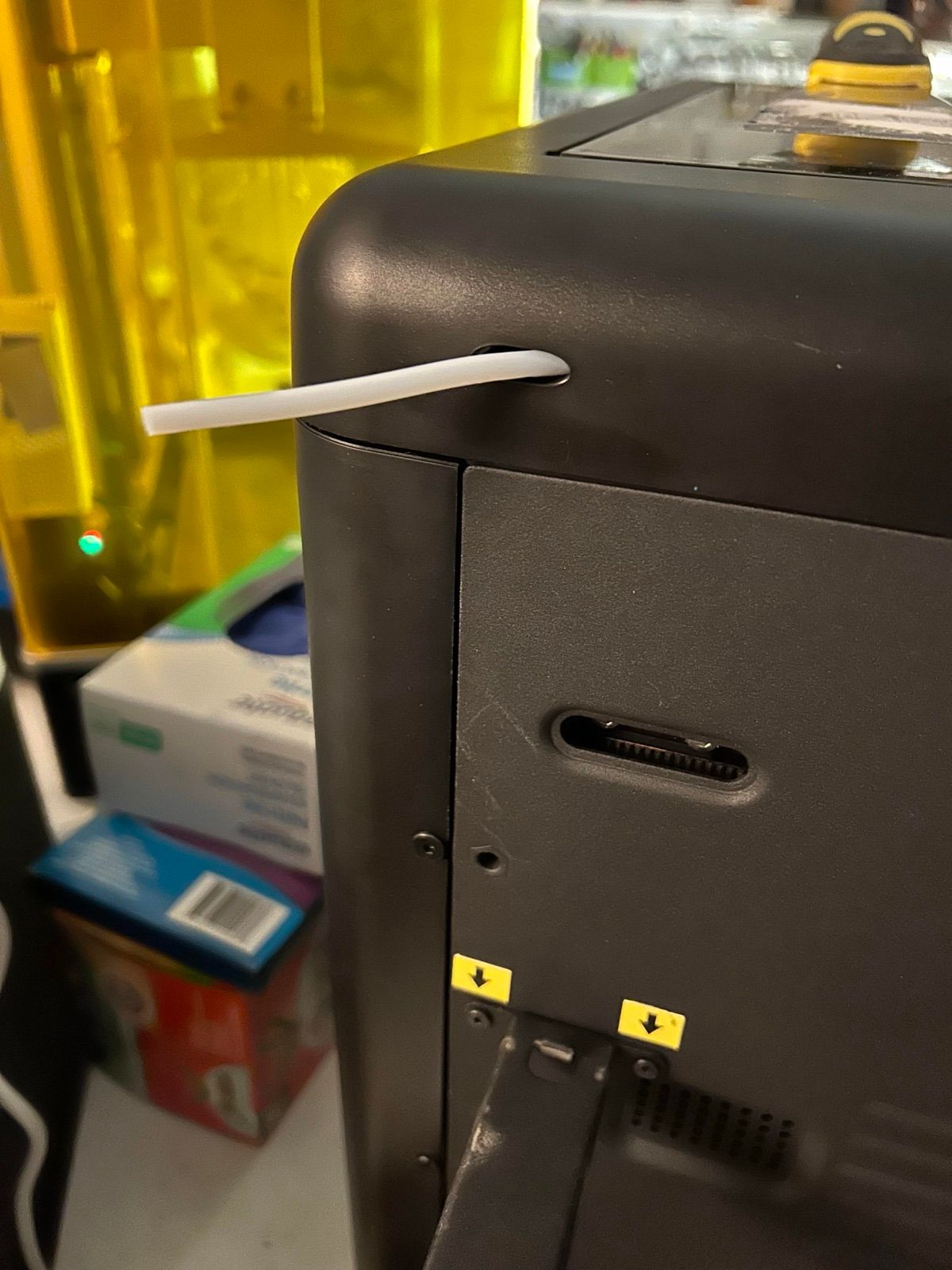
Adventurer 5M Pro: through the case
On the 5M Pro, feed the filament through the hole in the top rear of the enclosure, into the factory PTFE tube that comes out there. Don't bypass it by feeding the filament in through the top lid or front door.
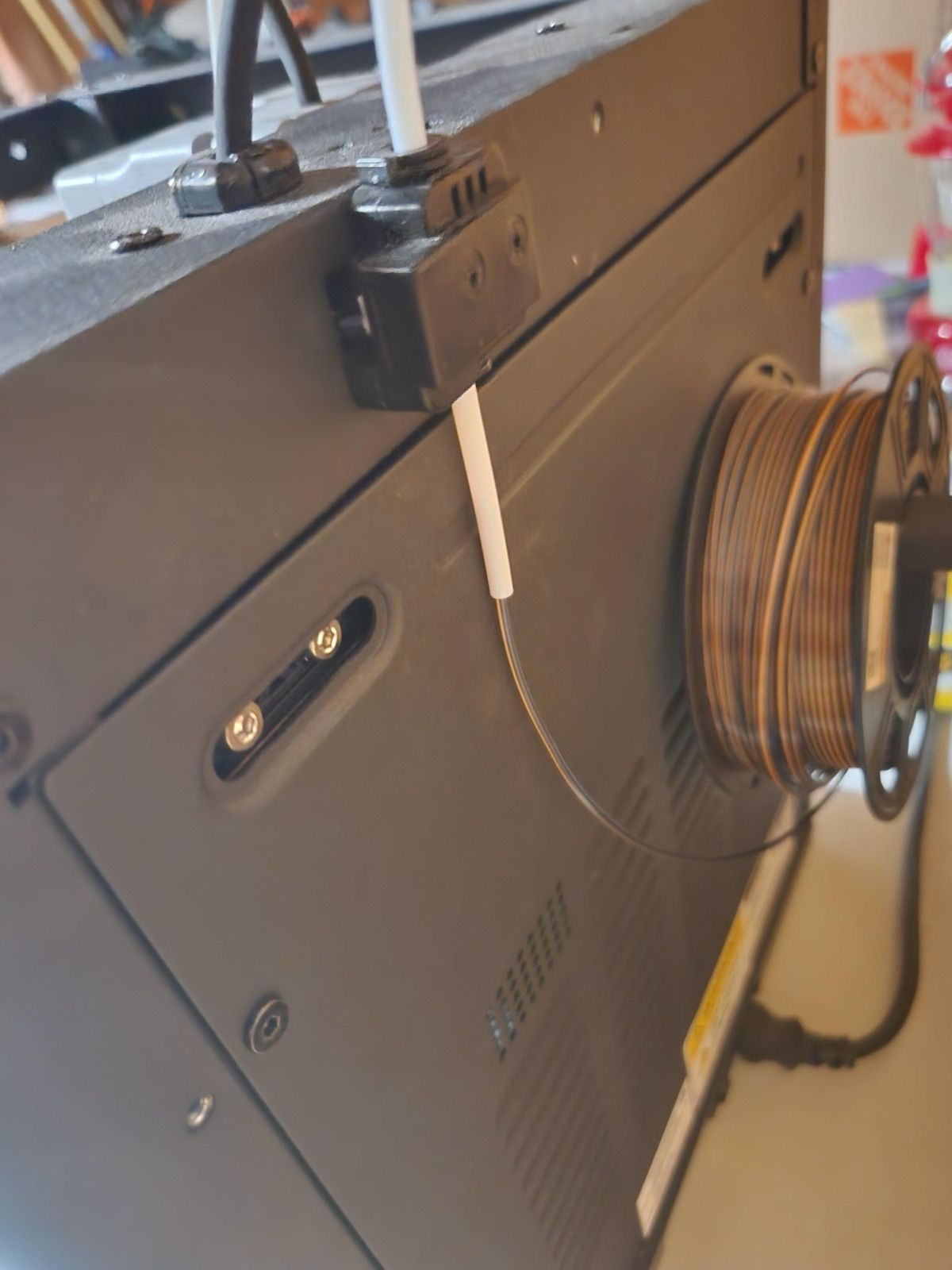
Adventurer 5M: through the runout sensor
On the open-frame 5M, the runout sensor is the small black block on the back edge of the printer. Feed the filament from the spool up through the bottom of the sensor, so it passes the switch before it enters the factory PTFE tube on its way to the toolhead.
What happens when the filament runs out
With filament detection on and the filament routed correctly, here's what to expect when a spool runs dry mid-print:
- The printer pauses the print instead of continuing to move without filament.
- A message appears on the touchscreen telling you the filament has run out.
- You remove the old filament and load a new spool, following the prompts on the screen. Feed it back through the same factory path.
- You resume the print, and it continues from where it paused.
A few tips for a clean recovery:
- Use the same material and color if you want the change to be invisible. Swapping colors mid-print works too, if you like the look.
- Don't wait too long. A paused print can cool and shift slightly, especially on long pauses. The sooner you reload, the cleaner the layer line where it resumes.
- Check the first few layers after resuming to make sure the new filament is flowing well before you walk away again.
Printer keeps saying it's out of filament?
If the printer pauses for runout when there's plainly filament loaded, check these in order:
- Filament routing. This is the most common cause. Make sure the filament goes through the case on the 5M Pro, or through the runout sensor on the 5M, and into the factory PTFE tube. Anything that bypasses that path will trigger false runouts.
- Filament fully inserted. The filament needs to be pushed far enough to press the switch. Unload it and load it again.
- Debris in the sensor. A broken filament tip or dust can keep the switch from working properly.
Turning Filament detect off will let you finish a print while you sort it out, but you lose your runout protection, so turn it back on once the filament path is fixed.
Watch your Adventurer 5M from anywhere
Runout detection pauses the print, but you still need to know it paused. If you're not standing next to the printer, that's where remote monitoring helps.
The Adventurer 5M and 5M Pro have Polar Cloud built into their firmware, so you can connect them straight from the touchscreen, with no Raspberry Pi or extra software. Once connected, you can check on your prints from any browser or the Polar Cloud mobile app. See the Flashforge setup guide for the steps.
Frequently asked questions
Does the Flashforge Adventurer 5M have a filament runout sensor?
Yes. Both the Adventurer 5M and the Adventurer 5M Pro have built-in filament runout detection. You turn it on from Info → Filament detect on the touchscreen.
Where is the filament detect setting on the Adventurer 5M Pro?
Tap the Info button (the circled "i") at the bottom of the left-hand menu. On the Machine Info screen, Filament detect is in the right-hand column, between Sound and Auto shut down.
Why does my Adventurer 5M keep saying the filament ran out?
Usually because the filament isn't going through the runout sensor. The sensor is a mechanical switch, so the filament has to physically pass through it. On the 5M Pro, feed filament through the hole in the case into the factory PTFE tube. On the 5M, feed it up through the runout sensor on the back of the printer.
Is filament runout detection on by default?
Don't assume it is. Settings can change after a factory reset or if someone else has used the printer, so check that the Filament detect switch is green before starting a long print.
Can I resume a print after the filament runs out?
Yes, as long as filament detection was on. The printer pauses instead of continuing, so you can load a new spool and resume from the same spot.
The bottom line
If you own an Adventurer 5M or 5M Pro, take a minute now: Info → Filament detect → green, and make sure your filament runs through the factory path. It's the cheapest insurance you'll find against a ruined overnight print.
And if you'd like to keep an eye on your prints when you're away from the printer, create a free Polar Cloud account and connect your Flashforge right from its screen.
Touchscreen screenshots courtesy of Flashforge. Filament routing photos via Reddit (5M Pro, 5M).


Subscribe for updates
Get Polar Cloud news and help delivered straight to your inbox.
More from the blog